Introduction:
Imagine you have a hundred different doors in your life, and each one needs a unique key. Your front door, your car, your office, your mailbox, your locker at the gym, and so on. Keeping track of all those keys would be impossible, right? You’d probably end up with a giant key ring that weighs down your pocket, or you’d start labelling them and hope you don’t lose the labels.
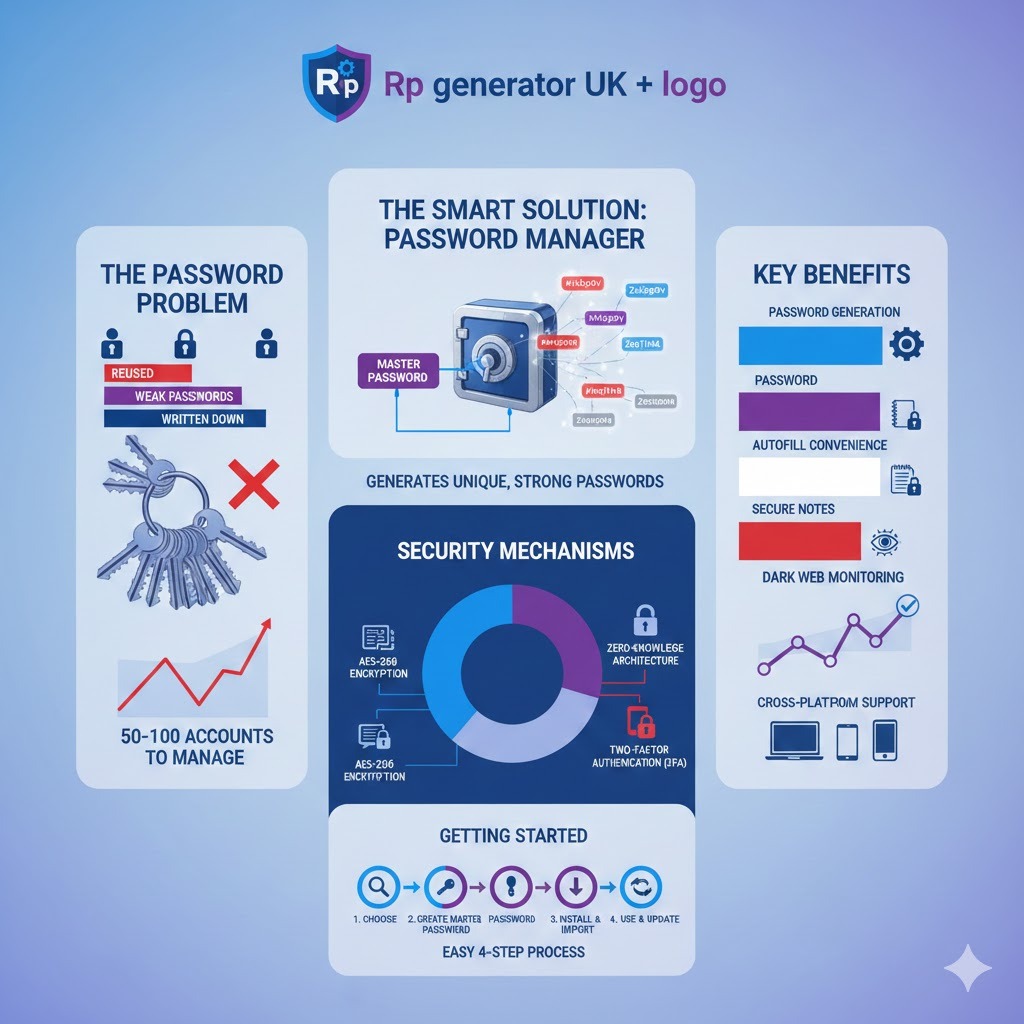
Now think about your digital life. How many websites and apps do you use that require a password? Your email, social media, banking, shopping, streaming services, work accounts, and probably dozens more. Most people have between 50 and 100 different online accounts that need passwords. That’s like having 50-100 digital keys to manage!
This is where a password manager comes in. Think of it as a super-secure digital keychain that holds all your passwords in one safe place. In this article, I’ll explain in simple terms why buying a good password manager is one of the smartest decisions you can make for your online security.
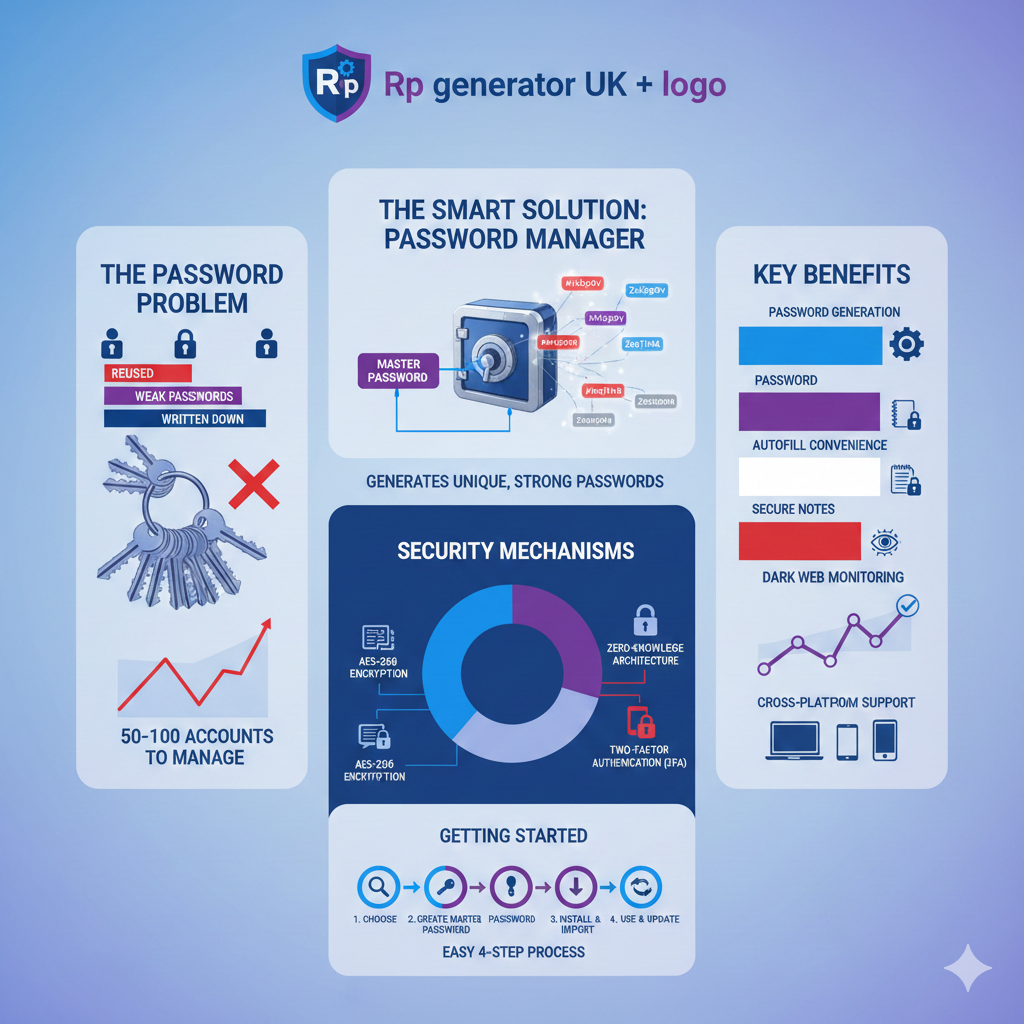
The Password Problem We All Face
Let’s be honest with ourselves – managing passwords is a headache. Most people deal with this problem in one of these ways:
- Using the same password everywhere – This is like using one key for every door in your life. Super convenient, but super dangerous!
- Writing passwords down – On sticky notes, in a notebook, or in a phone note. This is like leaving your house keys under the doormat with a sign that says “Keys here!”
- Using simple, easy-to-remember passwords – Like “123456”, “password”, or your pet’s name followed by a number. These are the first things hackers try when breaking into accounts.
- Using browser password managers – Better than nothing, but with limited features and security.
- Trying to remember a few complex passwords – And getting locked out regularly when you type them wrong too many times.
Let me tell you about my friend Sarah. She used her dog’s name, “Buddy,” followed by “123” for every single online account. One day, she got an email that a shopping website she used had been hacked. The hackers got her password and tried it on her email account. It worked! Then they tried it on her social media, her bank, and her credit card accounts. Within hours, they had taken over her digital life. It took her weeks to recover everything and change all her passwords. This is a perfect example of why password security is so important.
What Exactly Is a Password Manager?
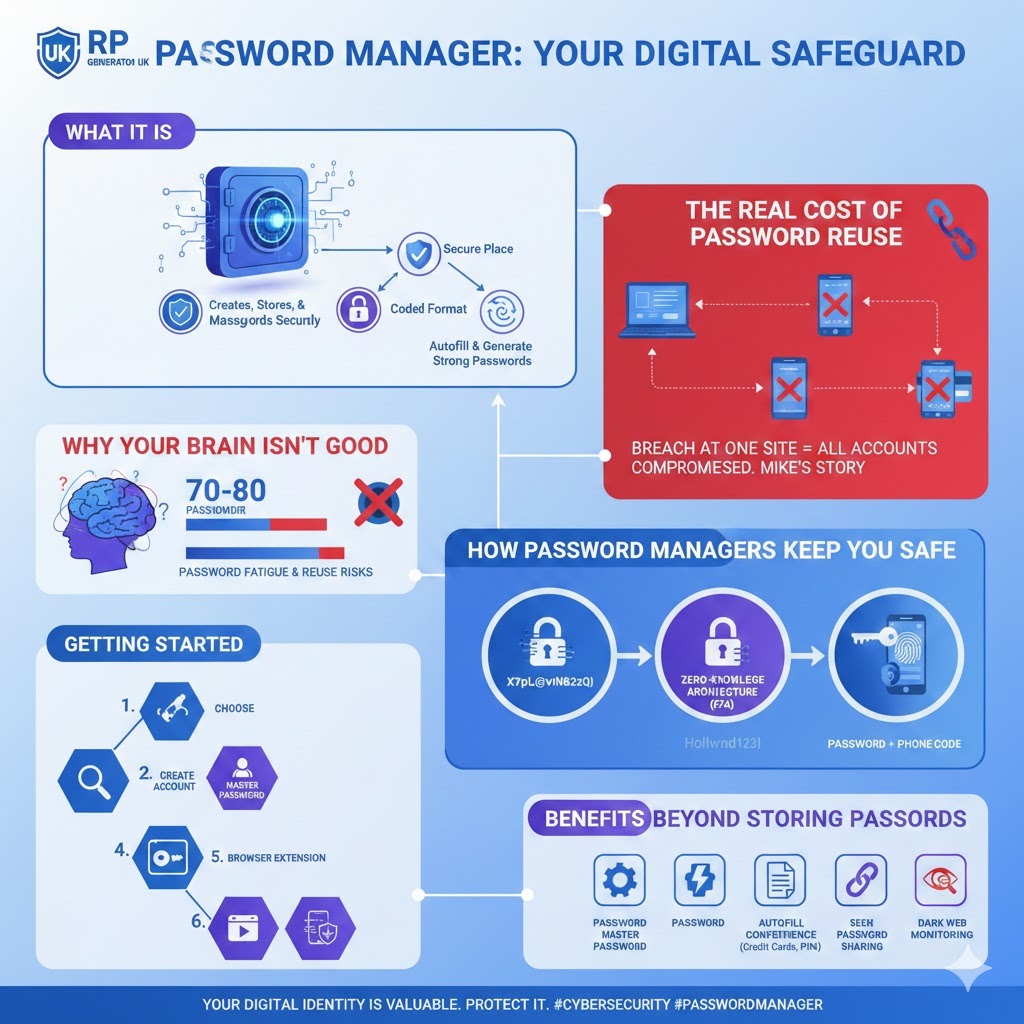
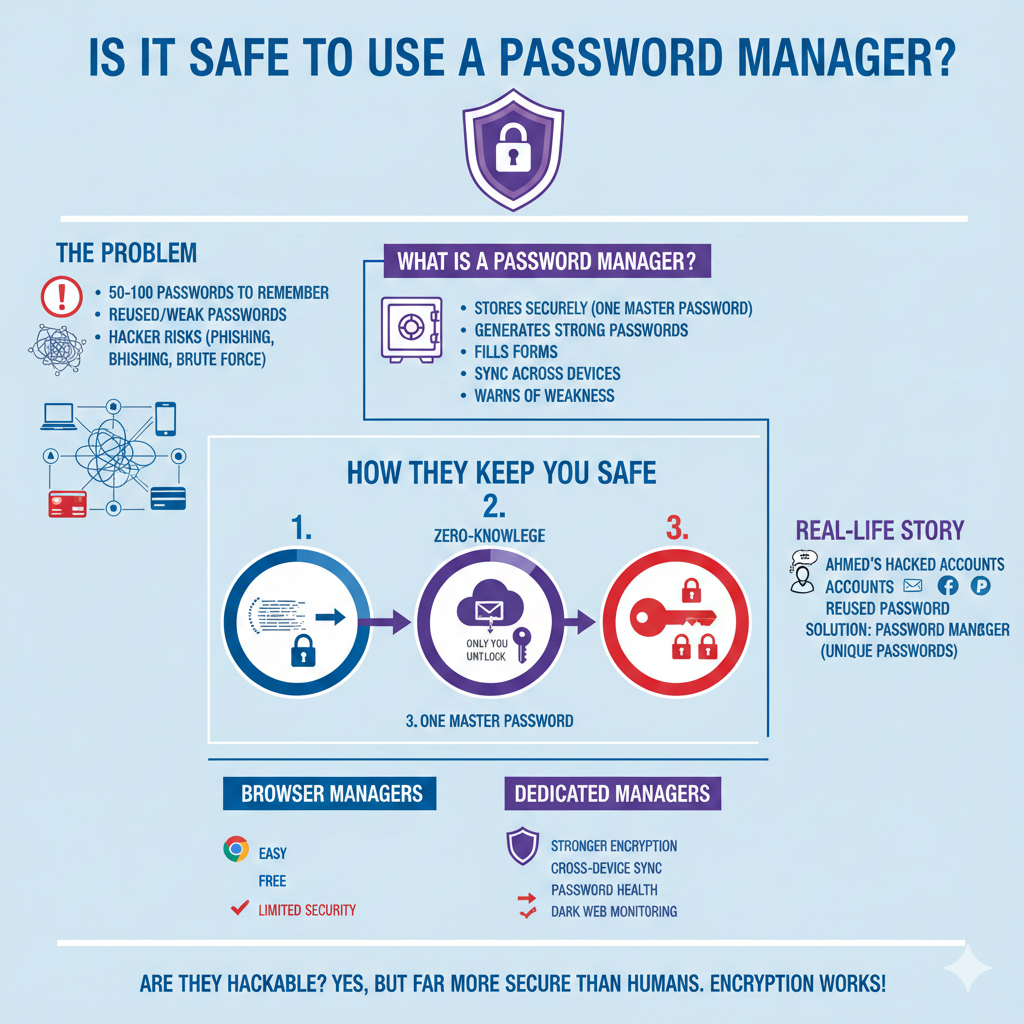
A password manager is a special kind of computer program that helps you create, store, and manage all your passwords in one secure place. Think of it as a digital safe or vault where you keep all your sensitive information.
Here’s how it works in simple terms:
- You create one strong master password – This is the only password you need to remember. It’s like the key to your digital safe.
- The password manager stores all your other passwords in a special, coded format that only you can unlock.
- When you need to log in to a website, the password manager fills in the username and password for you automatically.
- It can also create super-strong, random passwords for new accounts that would be impossible for anyone to guess.
The beauty of this system is that you only need to remember one password (the master password), while all your other passwords can be long, complex, and unique – making them much harder for hackers to steal.
Why Your Brain Isn’t Good at Password Management?
Humans are simply not designed to remember dozens of complex passwords. Our brains work best with patterns and familiar information, which is exactly what makes for bad passwords!
Research shows that the average person has between 70 and 80 passwords to remember. That’s like trying to remember 70 different phone numbers of people you barely know – impossible for most of us!
This leads to what security experts call password fatigue – when you get so tired of managing passwords that you start taking shortcuts, like using weak passwords or reusing them across multiple sites.
Think about it: our brains are good at remembering faces, names of people we care about, and important events in our lives. But random strings of characters like “7#hK$pR@9vN&2zQ!”? Not so much. That’s why we need help from technology.
The Real Cost of Password Reuse
Let me tell you another story about my cousin Mike. He was a smart guy who thought he had a clever system for passwords. He used the same password for his email, Netflix, and online shopping accounts, but with slight variations. For example, “Mike123!” for his email, “Mike123!Netflix” for Netflix, and “Mike123!Shop” for shopping sites.
One day, a small online store he used got hacked. The criminals stole all the users passwords from that site. They then wrote a simple computer program to try those passwords with common variations on major websites like Gmail, Facebook, and banking sites.
Within hours, they had figured out Mike’s pattern and accessed his email. From there, they used the “forgot password” feature on his other accounts to take them over. They changed his Netflix password, ordered expensive items on his shopping accounts, and even tried to access his bank account.
It took Mike months to recover from this. He had to contact customer service for dozens of companies, prove his identity, and reset all his accounts. The worst part was the feeling of violation – strangers had rummaged through his digital life.
This story illustrates the biggest danger of password reuse – a breach at one small, unimportant website can compromise all your important accounts if you use similar passwords everywhere.
How Password Managers Keep You Safe?
Modern password managers use several layers of security to protect your information. Let me explain these in simple terms:
Encryption:
Your passwords are protected with something called AES-256 encryption. This is a fancy term for a super-strong digital lock that scrambles your passwords into a code that’s nearly impossible to break.
Think of it like this: if your password is “HelloWorld123”, encryption might turn it into something that looks like “X7#pL@9vN&2zQ!”. Only someone with the special key (your master password) can turn it back into “HelloWorld123”.
This is the same level of security that banks and governments use to protect their most sensitive information. In simple terms, it would take a supercomputer billions of years to break this encryption.
Zero-Knowledge Architecture
Most quality password managers use something called zero-knowledge architecture. This means that even the company that makes the software can’t see your passwords.
Here’s how it works: your passwords are encrypted on your device before they ever leave your computer or phone. They travel to the company’s servers already scrambled. The company stores them, but they don’t have the key to unscramble them. Only you have that key (your master password).
It’s like giving someone a locked box without the key. They can store the box for you, but they can never open it to see what’s inside.
Two-Factor Authentication (2FA)
Many password managers also support two-factor authentication (2FA). This adds an extra layer of security by requiring two things to prove it’s really you:
- Something you know (your password)
- Something you have (like a code sent to your phone)
Think of it like using both your key and your fingerprint to open a safe. Even if someone steals your key, they still can’t open the safe without your fingerprint.
Benefits Beyond Just Storing Passwords
A good password manager does much more than just store passwords. Let me explain some of these extra benefits:
Password Generation
They can create super-strong, random passwords that are nearly impossible to guess. A good password might look like this: “7#hK$pR@9vN&2zQ!”. Good luck remembering that without a password manager!
These generated passwords are long, random, and include a mix of uppercase letters, lowercase letters, numbers, and symbols. They’re the kind of passwords that security experts recommend but no human can remember.
Autofill Convenience
The Autofill passwords feature saves you time by automatically filling in login forms on websites and apps. No more typing or trying to remember which password you used where.
When you visit a website where you have an account, the password manager will recognize it and offer to fill in your username and password with just one click. It’s like having a personal assistant who remembers all your login details for you.
Secure Notes
You can store other sensitive information like credit card numbers, security questions, Wi-Fi passwords, or important documents in your encrypted vault. These notes are protected with the same level of security as your passwords.
For example, you could store your passport information, social security number, or important PINs in your password manager. This way, you have access to them when you need them, but they’re kept safe from prying eyes.
Password Sharing
Some password managers allow you to securely share passwords with family members or coworkers without actually revealing the password itself.
For example, you could share your Netflix password with your family. They can use it to log in, but they won’t actually see what the password is. If you need to change it, you can do so, and it will update for everyone automatically.
Dark Web Monitoring
Premium services often include dark web monitoring that alerts you if your credentials appear in known data breaches. The dark web is a part of the internet where criminals buy and sell stolen information.
If your email address or password shows up in a data breach, the password manager will notify you so you can change that password immediately. It’s like having a security guard watching out for your digital identity 24/7.
Choosing the Right Password Manager
With so many options available, how do you choose the right password management solution for you? Here are some factors to consider:
Free vs. Paid
There are some good free password managers available, but paid versions usually offer more features like dark web monitoring, secure file storage, and priority customer support.
Free versions might be fine if you just need basic password storage on one device. But if you want to sync passwords across multiple devices, share passwords with family, or get advanced security features, you might want to consider a paid plan.
Cross-Platform Support
Make sure the password manager works on all your devices – Windows, Mac, iOS, Android, etc. A cross-platform password manager ensures you can access your passwords anywhere.
For example, if you use a Windows computer at work, a Mac at home, and an iPhone on the go, you’ll want a password manager that works on all three platforms.
Ease of Use
Look for a password manager with an intuitive interface that’s easy to navigate. Some are more user-friendly than others.
Consider trying out a few different options to see which one feels most comfortable to you. Many password managers offer free trials so you can test them before committing.
Security Features
Check for features like two-factor authentication, biometric authentication (fingerprint or face recognition), and emergency access options.
Biometric authentication allows you to unlock your password vault using your fingerprint or face, which is both convenient and secure. Emergency access lets you designate a trusted contact who can access your account if something happens to you.
Step-by-Step Guide to Getting Started with a Password Manager
Ready to make the switch to a password manager? Here’s how to get started:
Step 1: Choose Your Password Manager
Research different options and choose one that fits your needs. Some popular options include LastPass, 1Password, Dashlane, and Bitwarden.
Read reviews, compare features, and consider whether you want a free or paid version. Don’t worry too much about making the perfect choice – you can always switch to a different one later if you’re not happy.
Step 2: Create Your Account
Download the software or app and create your account. This is where you’ll set up your master password.
The setup process is usually straightforward and will guide you through each step. You’ll typically need to provide an email address and create your master password.
Step 3: Create a Strong Master Password
Your master password is the key to your digital kingdom, so make it strong! Here are some tips:
- Make it long (at least 12-15 characters)
- Use a mix of upper and lowercase letters, numbers, and symbols
- Consider using a passphrase – a series of random words like “correct horse battery staple”
- Don’t use personal information that could be guessed
A passphrase is often easier to remember than a random string of characters. For example, “PurpleElephantDancesInRain!” is both strong and easier to remember than “X7#pL@9vN&2zQ!”.
Step 4: Install Browser Extensions
Install the browser extension for your favorite web browser. This will enable the autofill feature.
Browser extensions are small programs that add functionality to your web browser. The password manager extension will typically appear as an icon in your browser’s toolbar, and you can click it to access your passwords or fill in login forms.
Step 5: Import Existing Passwords
Most password managers can import passwords from your browsers or other password managers.
If you’ve been saving passwords in your browser (like Chrome, Firefox, or Safari), you can usually export them and then import them into your new password manager. This saves you from having to manually re-enter all your passwords.
Step 6: Start Using It
As you log in to websites, your password manager will offer to save your credentials. When you create new accounts, use the password generator to create strong, unique passwords.
Over time, you’ll gradually replace all your old, weak, or reused passwords with new, strong ones generated by your password manager. Some password managers even have a “password health” feature that identifies weak or reused passwords for you.
Step 7: Enable Two-Factor Authentication
Set up two-factor authentication for an extra layer of security.
This usually involves installing an authenticator app on your phone (like Google Authenticator or Authy) and scanning a QR code from your password manager. After that, you’ll need to enter a code from your phone in addition to your password when logging in.
Common Concerns About Password Managers
Many people have concerns about using password managers. Let me address some of the most common ones:
What if the password manager company gets hacked?
This is a valid concern. However, reputable password managers use zero-knowledge architecture, which means even if their servers are compromised, your encrypted data remains secure without your master password.
Think of it like this: if a thief steals a bank vault, they still can’t open the safety deposit boxes inside without the individual keys. In the same way, even if hackers breach a password manager’s servers, they can’t access your passwords without your master password.
That said, no system is 100% foolproof. This is why it’s important to choose a reputable password manager with a good security track record.
What if I forget my master password?
This is a tricky one because of the security design. Since password managers use zero-knowledge architecture, they can’t reset your master password or send it to you if you forget it. If they could, it would mean they have access to your passwords, which defeats the purpose.
This is why it’s crucial to choose a master password you can remember or use the recovery options provided by the service. Some password managers offer emergency access features that allow trusted contacts to access your account if needed.
Others provide a recovery key when you first set up your account. This is a special code that you can save in a secure location (like a safe deposit box) and use to recover your account if you forget your master password.
Are cloud password managers safe?
Cloud password managers are generally very secure because your data is encrypted on your device before it ever leaves. The convenience of having your passwords available on all your devices often outweighs the minimal risk.
Think of it like storing money in a bank. The money isn’t physically in your home, but it’s protected by layers of security and available when you need it. In the same way, cloud password managers store your encrypted data on their secure servers, making it accessible from any device while keeping it protected.
Should I use my browser’s built-in password manager?
Browser password managers are better than nothing, but dedicated password management software typically offers more features, better security, and works across all devices and browsers.
Browser password managers are convenient because they’re built right into your browser, but they usually have limited features. For example, they might not generate strong passwords for you, or they might not work across different browsers or devices.
Dedicated password managers are designed specifically for password management and usually offer more robust features and better security.
Password Manager Best Practices
Once you’ve set up your password manager, follow these best practices to keep your digital life secure:
- Regularly update your master password – Consider changing it once a year or if you suspect it might have been compromised.
- Enable two-factor authentication for both your password manager and important accounts. This adds an extra layer of security.
- Use the password health check feature to identify weak or reused passwords. Many password managers will flag passwords that are weak, old, or used across multiple sites.
- Be cautious of phishing attempts – Always verify you’re on the legitimate website before entering credentials. Phishing is when criminals create fake websites that look real to trick you into entering your password.
- Keep your software updated to ensure you have the latest security patches. This includes your operating system, web browser, and password manager app.
- Use different passwords for every account – Never reuse passwords, even for accounts that seem unimportant. Hackers often use small, less secure sites as a way to get passwords that they can then try on more important sites.
- Secure your devices with strong passwords, PINs, or biometric authentication. If someone can access your device, they might be able to access your password manager.
Password Managers for Different Needs
Not everyone has the same password management needs. Let’s look at different options for different situations:
For Families
A family password manager allows multiple family members to share certain passwords while keeping others private. This is great for shared streaming accounts, bills, and more.
For example, parents might want to share their Netflix password with their kids but keep their banking passwords private. Family password managers allow you to create shared vaults for certain passwords while keeping others private.
Many family plans also include features for managing your children’s passwords and teaching them good password habits.
For Businesses
Business password managers or enterprise password managers offer features like role-based access, activity logs, and compliance reporting to help businesses maintain security standards.
In a business setting, you might need to share certain passwords among team members while keeping others restricted. For example, the social media team might need access to the company’s Twitter account, but not the financial accounts.
Business password managers also provide features for when employees leave the company, allowing you to transfer their passwords to other employees without losing access.
For Teams
Team password managers are designed for smaller groups who need to share access to certain accounts while maintaining security.
These are great for small businesses, departments within larger companies, or even groups of friends who collaborate on projects. They allow you to share passwords with specific team members and control who has access to what.
The Future of Password Management
The world of password security is constantly evolving. Here are some trends to watch:
Passwordless Authentication
We’re moving toward a future with fewer traditional passwords. Passwordless authentication uses methods like biometrics, security keys, or one-time codes instead of traditional passwords.
For example, instead of typing a password to log in to your email, you might use your fingerprint or face recognition. Or you might receive a notification on your phone that you can approve to log in.
Passkeys
Passkeys are a new standard that allows you to sign in to websites and apps without using a password at all. Instead, you use your device’s biometric authentication or a PIN.
Think of it like this: your phone creates a unique digital key for each website you use. When you want to log in, the website sends a challenge to your phone, and you approve it using your fingerprint or face. It’s both more secure and more convenient than traditional passwords.
Integration with Other Security Tools
Password managers are increasingly integrating with other cybersecurity tools to provide comprehensive protection.
For example, some password managers now include VPNs (Virtual Private Networks) to protect your internet connection, or secure cloud storage for your important files. Others are integrating with identity theft protection services to monitor your personal information and alert you to suspicious activity.
Real-World Examples of Password Manager Success
Let me share a few more stories to illustrate how password managers have helped real people:
The Small Business Story
A small accounting firm was struggling with password security. Employees were sharing passwords through email and sticky notes on monitors. They had a spreadsheet with all their client passwords that anyone in the office could access.
After implementing a business password manager, they not only improved security but also saved time by eliminating password-related lockouts and reset requests. They could now control who had access to which client accounts, and when an employee left the company, they could easily transfer their passwords to someone else.
The Family Vacation
A family planning a vacation used a family password manager to share all their booking confirmations, travel documents, and loyalty program information. When one family member’s luggage was lost, another could quickly access the airline account from their phone to file a claim.
They also used it to share the rental car reservation, hotel booking, and activity reservations. Everyone had access to all the information they needed, but the sensitive information was kept secure.
The Senior Citizen
An elderly woman was having trouble remembering all her passwords for online banking, healthcare portals, and social media. She was writing them down in a notebook, which she worried about losing or having stolen.
Her son set up a password manager for her with a simple master password she could remember. He also enabled biometric authentication on her tablet so she could access her passwords with her fingerprint.
Now she can access all her accounts without frustration, and her family has peace of mind knowing her accounts are secure. She even uses the password generator to create strong passwords for new accounts she sets up.
Addressing Common Misconceptions
There are many misconceptions about password managers. Let me address a few more:
“Password managers are complicated to use”
While they might seem intimidating at first, modern password managers are designed to be user-friendly. Most offer guided setup and intuitive interfaces.
Think of it like learning to use a smartphone. At first, it might seem complicated, but once you get used to it, it becomes second nature. The same is true for password managers.
“I don’t have anything worth protecting”
Even if you think you don’t have valuable information, your email account alone can be a gateway to resetting passwords for other accounts. Criminals can use your email to access your other accounts, steal your identity, or scam your contacts.
Everyone needs digital security, regardless of how “important” they think their information is.
“It’s expensive to use a password manager”
When you consider the cost of identity theft or the time wasted dealing with compromised accounts, a password manager is actually quite affordable. Many offer free versions, and premium plans typically cost just a few dollars per month.
Think of it like this: you probably spend more on coffee in a month than you would on a password manager subscription. And while coffee gives you temporary enjoyment, a password manager gives you lasting security and peace of mind.
Making the Transition to a Password Manager
If you’re ready to switch to a password manager, here’s how to make the transition smoothly:
- Start with your most important accounts – Email, banking, and social media are good places to start.
- Gradually update passwords for less critical accounts over time. You don’t have to change everything at once.
- Use the password health feature to identify weak or reused passwords. Many password managers will give you a security score and show you which passwords need to be updated.
- Take advantage of browser extensions to make logging in easier. These will automatically fill in your passwords on websites.
- Set up mobile apps for access on your phone or tablet. This way, you’ll have your passwords with you wherever you go.
- Be patient with yourself. It might take a little time to get used to using a password manager, but once you’re comfortable with it, you’ll wonder how you ever lived without it.
Conclusion:
In today’s digital world, good password hygiene is essential. A password manager is one of the smartest investments you can make in your online security. It saves you time, reduces stress, and most importantly, protects you from the growing threat of cybercrime.
Remember my friend Sarah whose accounts were hacked because she used the same password everywhere? After that experience, she invested in a password manager and now enjoys peace of mind knowing her accounts are secure. She says it’s one of the best decisions she’s ever made.
Whether you choose a free password manager or a premium option, taking control of your password security is a smart move. Your digital identity is valuable, and protecting it with a password manager is a small price to pay for the security and convenience it provides.
FAQS About Password Manager
1. What is a password manager, really?
Think of it as a digital safe for all your passwords. You remember one single password, called the “master password,” and the password manager remembers all the others for you. It keeps them locked up tight and can even create super-strong new passwords for you.
2. Why can’t I just write my passwords down in a notebook?
A physical notebook can be lost, stolen, or damaged. If someone finds it, they have access to all your accounts. A password manager is encrypted, which means it’s scrambled into a secret code that’s almost impossible for anyone else to read, even if they steal your computer.
3. Is it actually safe to put all my passwords in one place?
It might seem scary, but yes, it’s much safer than the alternatives. Reputable password managers use something called “zero-knowledge” encryption. This means your passwords are encrypted on your device before they’re sent to the company’s servers. Even the company itself can’t see your passwords. They only have the locked box; you have the only key.
4. What’s the single biggest benefit of using a password manager?
Peace of mind. You stop worrying about remembering dozens of passwords, and you dramatically increase your security by using a unique, strong password for every single site. It saves you time and protects you from hackers.
Getting Started
5. How do I start using a password manager?
It’s easy! First, choose a password manager company (many have free versions). Then, create an account and set up your one “master password.” After that, install their app on your phone and their extension on your web browser. The service will then guide you on how to save and import your passwords.
6. What is a “master password” and why is it so important?
Your master password is the one key that unlocks your entire password vault. It’s the only password you have to memorize. It’s extremely important because if someone gets your master password, they can access all your other passwords. That’s why it needs to be long and unique.
7. What happens if I forget my master password?
This is a tough one because of the security design. Since the company doesn’t know your password, they can’t reset it for you. That’s why you MUST choose a master password you can remember. Some managers offer a “recovery key” when you sign up, which is a special code you can save in a very safe place (like a safe deposit box) to get back in.
8. How do I move my existing passwords into a new password manager?
Most password managers have an “import” feature. You can usually export your saved passwords from your web browser (like Chrome or Firefox) into a file, and then import that file directly into your new password manager. It’s a one-time setup that saves a lot of work.
9. Should I change all my old passwords right away?
Not necessarily. You can do it gradually. Start with your most important accounts, like your email and bank. As you log in to other sites over time, your password manager will prompt you to save the old one and then you can use its generator to create a new, strong one to replace it.
Features & Functionality
10. How does a password manager fill in my passwords for me?
You install a small add-on called a “browser extension.” When you visit a website, the extension recognizes it and offers to fill in your username and password with a single click. On your phone, the app can do the same thing inside other apps or your web browser.
11. What is a “password generator” and why should I use it?
It’s a tool built into the password manager that creates long, random, and extremely complex passwords (like pR7#zQ!9vN&hK$X2). You should use it because these passwords are nearly impossible for hackers to guess, and you don’t even have to remember them—the manager does it for you.
12. Can I store other things besides passwords in it?
Yes! Most password managers have a “Secure Notes” section. This is a great place to store sensitive information like your Wi-Fi password, credit card numbers, passport details, or software license keys. It’s all protected by the same strong encryption.
13. What is “two-factor authentication” (2FA) and do I need it?
Two-factor authentication is like needing two keys to open a door. It combines something you know (your password) with something you have (a code from your phone). Enabling 2FA on your password manager adds a massive extra layer of security, and yes, you should absolutely use it.
14. What is “dark web monitoring”?
The dark web is a hidden part of the internet where criminals buy and sell stolen information. Some password managers offer a feature that constantly scans these dark web markets for your email address or passwords. If they find your information, they alert you immediately so you can change your password.
15. Can a password manager itself be hacked?
Anything is possible, but it’s extremely rare and difficult for major, reputable password managers. Because of the zero-knowledge encryption, even if hackers broke into the company’s servers, they would only find scrambled, unreadable data. They would still need your master password to decrypt it.
16. What if the password manager company goes out of business?
This is a valid concern. However, most good password managers allow you to export all your data at any time. As long as you have a local copy of your exported passwords, you can easily import them into a different password manager. You are never truly locked in.
17. Are online (cloud) password managers safe?
Yes, they are very safe. “Cloud” just means your encrypted password vault is stored on the company’s secure servers so you can access it from any device (your phone, laptop, etc.). Remember, it’s encrypted before it leaves your device, so it’s secure during transit and on their servers.
18. Is a password manager better than the one built into my browser (like Chrome or Safari)?
Yes, a dedicated password manager is generally much better. Browser managers are convenient but lack advanced features like strong password generators, secure notes, dark web monitoring, and cross-platform compatibility (they often don’t work well on other browsers or phones).
19. What does “zero-knowledge” mean in simple terms?
It means the password manager company has zero knowledge of your passwords. They store your encrypted data, but they don’t have the “key” to read it. Only you, with your master password, can unlock and read your passwords.
20. Should I choose a free or paid password manager?
A free password manager is a great start and is much better than nothing. However, paid versions (usually just a few dollars a month) offer valuable extras like sharing passwords with family, advanced 2FA options, dark web monitoring, and priority customer support.
21. Which password manager is the absolute best?
There isn’t one “best” for everyone. The best one for you depends on your needs. Do you need a family plan? Are you on a tight budget? Do you use multiple types of devices (Windows, Mac, Android, iOS)? Read reviews and try a few free versions to see which one you like the most.
22. Can I use a password manager on my phone and computer?
Yes, and that’s one of their best features! A good password manager will sync your passwords across all your devices. When you save a new password on your computer, it will be available on your phone within seconds.
23. How do I share a password with my family member?
Many password managers have a secure sharing feature. Instead of telling them the password, you can grant them access through the app. They can then use the password to log in, but they won’t actually see the password itself. If you change it, their access updates automatically.
24. What is “password health” or a “password audit”?
This is a feature that scans all your saved passwords and gives you a security report. It will flag any passwords that are weak, old, or being used on more than one website. It’s a great tool to help you improve your security over time.
25. Are there password managers specifically for families?
Yes! Many companies offer “family plans.” These allow you to share a common vault for things like streaming services or shared bills, while also giving each family member their own private vault for personal accounts.
26. How are password managers used in a business?
Businesses use them to securely share passwords among employees who need them. They can control who has access to what, and when an employee leaves, they can instantly remove their access to all company passwords without any disruption.
27. What happens to my passwords if I pass away?
This is an important consideration. Some password managers have an “emergency access” feature. You can designate a trusted contact (like your spouse or a family member) who, after a waiting period you set, can request access to your account if something happens to you.
28. What are “passkeys” I keep hearing about?
Passkeys are the future of logging in. They replace passwords completely. You use your phone’s fingerprint or face ID to approve a login. It’s more secure and more convenient. Many password managers are starting to support passkeys, storing them just like they store passwords.
29. Is it hard to switch from one password manager to another?
Not at all. The process is the same as when you first started: you export all your data from your old manager into a file, and then import that file into the new one. It usually takes just a few minutes.
30. Do I still need to be careful about online scams if I use a password manager?
Absolutely! A password manager protects your passwords, but it can’t protect you from everything. You still need to be wary of “phishing” scams, where criminals create fake websites to trick you into entering your information. Always double-check that you’re on the real website before you let your password manager fill in your details.