
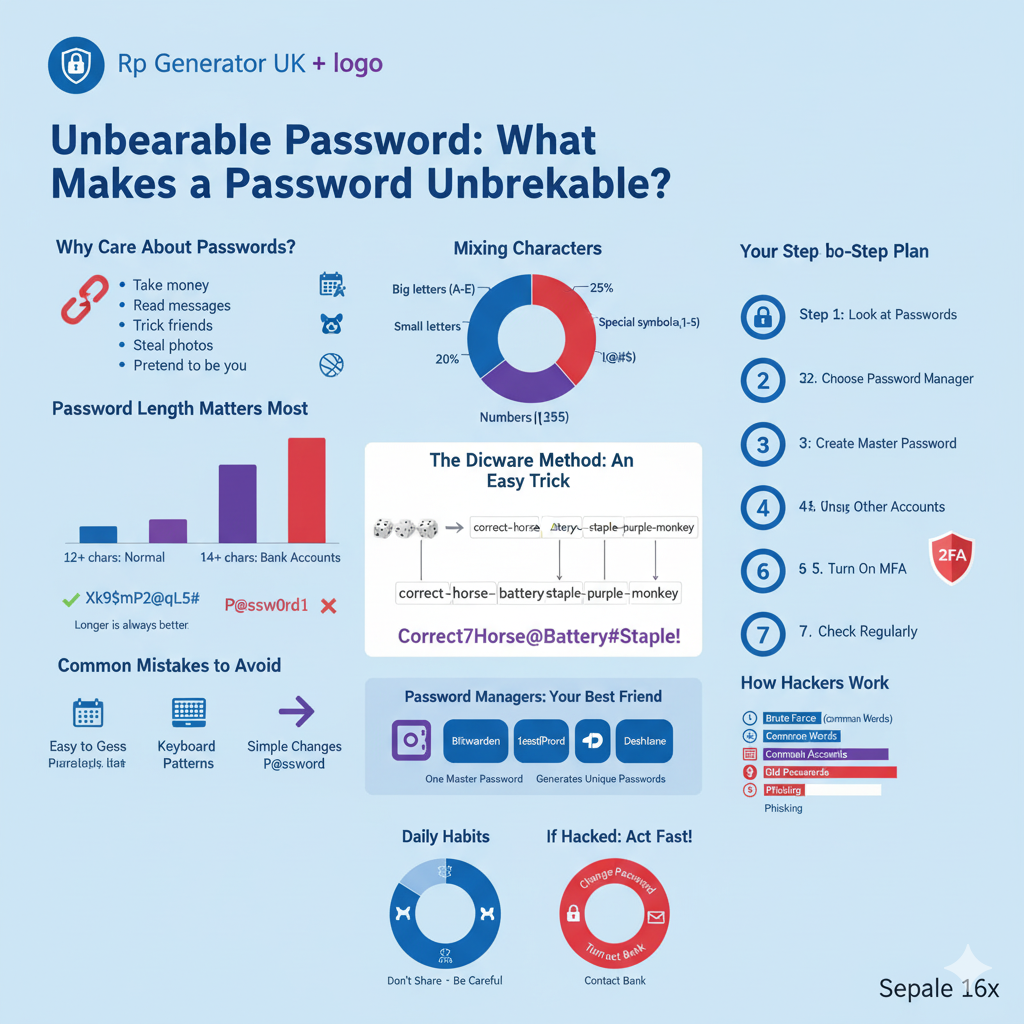

Do you use passwords every day? Of course you do. We all use them for email, social media, banking, and shopping. But do you know what makes a good password? Today, I will explain everything about strong passwords in very simple words.
Why Should You Care About Passwords?
Let me tell you a true story. My neighbor Mary used “123456” as her password. One day, someone broke into her email. They read all her private messages. They also sent bad emails to her friends. Mary felt terrible. She cried for days.
This happens to many people. Bad people on the internet try to steal passwords. They want to:
- Take your money
- Read your private messages
- Use your account to trick your friends
- Steal your photos
- Pretend to be you online
Therefore, having a strong password is very important. It’s like having a good lock on your door. A good lock keeps bad people out of your house. A good password keeps bad people out of your accounts.
What Is a Strong Password?
A strong password is hard to guess. It’s hard to break. It keeps your accounts safe.
Think about it like this. Imagine you have a treasure box. You can lock it with a simple lock that has three numbers. A thief could try all the numbers quickly. Now imagine a lock with ten numbers and letters. It would take the thief years to open it. That’s what a strong password does.
A strong password has these things:
- It is long
- It has different types of letters and numbers
- It doesn’t use your name or birthday
- It is different for each account
- Nobody can guess it easily
Why Length Matters Most
Here is something many people don’t know. Password length is more important than anything else.
A short password is like a short fence. Even if the fence is strong, someone can jump over it easily. A long password is like a tall fence. It’s much harder to climb over.
Let me give you an example. The password “X@9!” is short. It has only four characters. A computer can guess it in minutes. But the password “blueelephantswimsintheocean” is long. It has 28 characters. A computer would need many years to guess it.
Most experts say:
- Use at least 12 letters for normal accounts
- Use at least 14 letters for important accounts
- Use at least 16 letters for bank accounts
But remember, longer is always better. If you can make a 20-letter password, do it. If you can make a 30-letter password, even better.
Mixing Different Characters
After length, the next important thing is password complexity. This means mixing different types of characters.
What are the different types?
- Big letters (A, B, C, D, E)
- Small letters (a, b, c, d, e)
- Numbers (1, 2, 3, 4, 5)
- Special symbols (!@#$%^&*)
Why mix them? Because it makes guessing harder.
Imagine you have a password with only small letters. There are 26 letters in the alphabet. So each spot in your password has 26 choices. Now add big letters. Suddenly each spot has 52 choices. Add numbers. Now there are 62 choices. Add symbols. Now there are about 95 choices for each spot.
More choices mean more time to guess. More time means you stay safer.
For example:
- “password” is weak
- “Password” is a little better
- “Password1” is better
- “P@ssw0rd1” is even better
- But “Xk9$mP2@qL5#” is much better
However, there is still a problem with “P@ssw0rd1”. Can you guess what it is? Keep reading to find out.
Don’t Use Common Words
Many people make this mistake. They use common words in their passwords. They think adding numbers makes it safe. But it doesn’t.
Bad people who steal passwords don’t type them one by one. They use computers. These computers are very fast. They can try millions of passwords every second.
First, the computer tries common passwords like:
- password
- 123456
- qwerty
- welcome
- admin
Then it tries these words with numbers:
- password1
- password123
- welcome2024
Then it tries simple changes:
- p@ssword
- passw0rd
- welc0me
See the pattern? Even if you think you’re clever by changing “o” to “0” or “a” to “@”, the computer knows these tricks.
Here are common words you should never use:
- The word “password” in any form
- Your name
- Your pet’s name
- Your favorite sports team
- Your favorite food
- Names of family members
- Simple words like “love,” “happy,” “welcome”
All these are easy to guess. Computers can find them quickly.
Never Use Personal Information
This is very important. Never use personal information in your passwords.
What is personal information?
- Your birthday
- Your anniversary date
- Your phone number
- Your address
- Your car number
- Names of your children
- Your favorite movie
- Your favorite book
Why not? Because this information is easy to find online.
Let me tell you another story. My cousin Tom used his dog’s name “Rocky2018” as his password. The year 2018 was when he got the dog. Someone looked at his Facebook photos. They saw the dog’s name. They saw the date he got the dog. They guessed his password in five minutes.
Today, we share so much online. Our birthdays are on Facebook. Our pet names are in our photos. Our addresses are in public records. Our children’s names are in our posts.
Bad people collect this information. Then they use it to guess passwords. This is called “social engineering.”
So remember: never use personal information in passwords. Even if you think nobody knows it, don’t risk it.
Making Random Passwords
The best passwords are random passwords. Random means they have no pattern. They have no meaning. They don’t spell any word.
Here is a random password: “Xk9$mP2@qL5#nR8!”
Look at it carefully. It doesn’t make sense, right? That’s good. That’s what we want.
Why are random passwords best? Because computers can’t guess patterns. If there’s no pattern, there’s no way to guess quickly.
You might ask, “But how will I remember it?” That’s a fair question. I will answer it soon. For now, just understand that random is best.
When you make a random password:
- Don’t use any real words
- Don’t use any patterns
- Don’t use sequences like “abc” or “123”
- Mix everything randomly
Think of it like mixing different colored balls in a bag. You pick them out without looking. That’s how random your password should be.
The Diceware Method: An Easy Trick
Now I’ll teach you a simple way to make strong passwords. It’s called the diceware method. You need dice (those small cubes with dots on them).
Here’s how it works:
Step 1: Get five dice. If you don’t have five, use one die five times.
Step 2: Roll the dice. Write down the numbers. For example: 4-3-2-5-1.
Step 3: Look up this number in a diceware word list. You can find this list on the internet. Each number matches one word.
Step 4: Write down the word.
Step 5: Roll the dice again. Get another word. Do this six times.
Step 6: Put all six words together.
You might get something like: “correct-horse-battery-staple-purple-monkey”
This is called a passphrase. It’s long. It’s random (because dice chose it, not you). And it’s easier to remember than “Xk9$mP2@qL5#nR8!”.
You can make it even stronger:
- Put numbers between words: “correct7horse3battery9staple”
- Use capital letters: “Correct-Horse-Battery-Staple”
- Add symbols: “correct!horse@battery#staple”
The great thing about this method is that it’s both strong and somewhat easy to remember. You can create a little story in your head: “A correct horse has a battery and staple.”
Understanding How Hackers Work
Let me explain how bad people try to steal passwords. This will help you understand why strong passwords matter.
Method 1: Trying Everything
This is called a brute force attack. The computer tries every possible combination. It tries “a”, then “b”, then “c”, and so on. It tries “aa”, “ab”, “ac”, and keeps going.
For short passwords, this works fast. A four-character password can be cracked in minutes. But a 16-character password would take thousands of years.
Method 2: Trying Common Words
The computer has a big list of common words and passwords. It tries all of them. This is why using dictionary words is dangerous.
Method 3: Using Old Passwords
Sometimes websites get hacked. The hackers steal all the passwords. Then they try these passwords on other websites. This is why you need different passwords for each account. We’ll talk more about this soon.
Method 4: Guessing Personal Information
Hackers look at your social media. They find your birthday, pet names, and other information. Then they try these in your password.
Method 5: Tricking You
Sometimes hackers send fake emails. The email looks real. It asks you to type your password. This is called “phishing.” Always be careful about where you type your password.
The good news? A long, random, unique password stops all these methods. The hackers give up and move to easier targets.
One Password Per Account: The Golden Rule
This is perhaps the most important rule. Use a unique password for each account. Every single account should have its own password.
Never, ever use the same password twice.
Why is this so important? Let me explain with an example.
Imagine you use the same password for:
- Your email
- Your Facebook
- Your Instagram
- Your bank
- Your Amazon account
One day, a small shopping website you used gets hacked. The hackers now have your email and password from that website.
What do they do next? They try your password on every popular website. Gmail. Facebook. Instagram. PayPal. Banks. Everything.
If you used the same password everywhere, they now control everything. They can:
- Read all your emails
- Post on your social media
- Steal money from your bank
- Buy things with your credit card
- Lock you out of everything
This is called password compromise. It happens millions of times every year. Most hacks happen this way. Not by breaking strong passwords, but by reusing passwords.
I know what you’re thinking. “But how can I remember 50 different passwords?” Don’t worry. I’ll tell you the solution soon.
For now, remember: every account needs its own password. Your email password should be different from Facebook. Your Facebook password should be different from Instagram. Your bank password should be completely unique.
Password Managers: Your Best Friend
Now here’s the solution to remembering many passwords. Use a password manager.
What is a password manager? It’s like a safe for all your passwords. You remember only one password (the master password). The manager remembers all your other passwords.
How does it work?
Step 1: You choose a password manager. Some good ones are:
- Bitwarden
- 1Password
- LastPass
- Dashlane
Step 2: You create one very strong master password. This is the only password you need to remember. Make it your strongest password ever.
Step 3: The password manager creates random, strong passwords for all your accounts.
Step 4: When you visit a website, the manager fills in your password automatically.
Why is this great?
- You only remember one password
- All your other passwords are very strong and random
- Each account has a unique password
- It works on your phone and computer
- It’s much safer than writing passwords on paper
Many people worry: “What if someone hacks my password manager?” Good question. But password managers use very strong encryption. They are much safer than:
- Using the same password everywhere
- Using weak passwords
- Writing passwords on paper
- Keeping passwords in a regular document
Moreover, good password managers offer extra security features:
- They tell you if you have weak passwords
- They warn you if you’re reusing passwords
- They alert you if your password appears in a data breach
- They let you share passwords safely with family
Setting up a password manager takes maybe 30 minutes. But it saves you countless hours of worry and trouble later.
Adding Extra Security with Two-Factor Authentication
Even with strong passwords, smart people add another layer. This is called multi-factor authentication or MFA.
What is MFA? It’s like having two locks on your door instead of one.
Here’s how it works. When you log in:
- First, you type your password (first lock)
- Then, you prove it’s really you in another way (second lock)
The second proof could be:
- A code sent to your phone
- A code from an app
- Your fingerprint
- Your face
- A special physical key
Why is this powerful? Even if someone steals your password, they can’t get in without the second factor.
Let me give you an example. Bad people steal your password. They try to log into your account. The website sends a code to your phone. The bad people don’t have your phone. So they can’t get in. Your account stays safe.
Multi-factor authentication stops over 99% of automated attacks. That’s huge.
Many important websites offer MFA:
- Gmail and other email services
- Facebook and Instagram
- Banks
- PayPal and payment services
- Apple and Google accounts
Turn it on for all your important accounts. Yes, it takes an extra few seconds to log in. But those few seconds give you much better security.
Your Step-by-Step Plan
Now let’s put everything together. Here’s your complete plan for creating unbreakable passwords.
Step 1: Look at Your Current Passwords
First, be honest with yourself. Look at all your passwords. Ask yourself:
- Are they long enough?
- Do they use personal information?
- Are you using the same password for multiple accounts?
- Are they based on common words?
Write down which passwords need to change. Don’t worry if the list is long. We’ll fix them one by one.
Step 2: Choose a Password Manager
Research password managers. Read reviews. Pick one that you like. Most have free versions that work well.
Download it on your computer. Download it on your phone. This usually takes 10 minutes.
Step 3: Create Your Master Password
This is very important. Your master password should be:
- At least 16 characters long
- Have all types of characters
- Be easy for you to remember
- Be impossible for others to guess
You can use the diceware method for this. Or create a long phrase that means something to you (but not personal information).
For example: “Blue7Mountains!Dance2InThe@Moon9Light”
This has:
- 40 characters (very long)
- Big and small letters
- Numbers
- Symbols
- A phrase you can remember
Write this master password on paper. Keep the paper in a very safe place. Maybe a locked drawer or safe. You’ll need it at first until you memorize it.
Step 4: Start with Important Accounts
Don’t try to change everything at once. Start with your most important accounts:
- Your main email
- Your bank accounts
- Your work accounts
- Your payment accounts (PayPal, etc.)
Use the password manager to create a new, strong password for each one. The password manager can make passwords like: “vR7$kM9@xL2#pN5!”
Don’t try to remember these. The password manager remembers them for you.
Step 5: Move to Other Accounts
After you finish important accounts, move to others:
- Social media
- Shopping websites
- Streaming services
- Forums and communities
Take your time. Maybe do five accounts per day. In two weeks, you’ll have all new strong passwords.
Step 6: Turn On Two-Factor Authentication
For every account that offers it, turn on multi-factor authentication. Start with:
- Email accounts
- Banking
- Social media
- Any account with personal information
Most accounts make this easy. Usually, you:
- Go to settings
- Find security options
- Turn on two-factor authentication
- Choose your method (usually phone codes)
- Save the backup codes somewhere safe
Step 7: Check Regularly
Every few months:
- Open your password manager
- Look for weak passwords it found
- Update old passwords
- Check for any security alerts
Think of this like going to the dentist. You don’t do it every day. But doing it regularly keeps you healthy.
Common Mistakes to Avoid
Even when people try to be safe, they make mistakes. Let’s look at common password mistakes so you can avoid them.
Mistake 1: Using Keyboard Patterns
Many people type patterns on their keyboard. Like:
- qwerty
- asdfgh
- 12345
- zxcvbn
These are as easy to guess as “password.” Computers know these patterns.
Mistake 2: Simple Changes to Words
Changing “o” to “0” or “a” to “@” seems clever. But hackers expect this. “P@ssw0rd” is almost as weak as “Password.”
Mistake 3: Sharing Passwords
Never tell anyone your password. Not friends. Not family. Not coworkers. If someone needs access to something, most services have ways to share access without sharing passwords.
Mistake 4: Writing Passwords Where Others Can See
Don’t write passwords on sticky notes near your computer. Don’t keep them in an unlocked document. If you must write them down, lock them in a safe place.
Mistake 5: Never Changing Passwords
You don’t need to change passwords every month. But you should change them when:
- A website reports a hack
- You think someone might have seen your password
- Someone you shared a password with shouldn’t have it anymore
- It’s been over a year for important accounts
Mistake 6: Using Public Computers
Be careful on public computers at libraries or internet cafes. These might have software that records what you type. If you must use them, change your password later from your own computer.
Mistake 7: Clicking Links in Emails
Bad people send fake emails that look real. They ask you to click a link and type your password. Never do this. If you get an email asking for your password, go directly to the website by typing the address yourself.
Mistake 8: Using the Same Security Questions
Many websites ask security questions like “What’s your mother’s maiden name?” or “Where were you born?” Don’t use real answers. These are easy to find online. Instead, use random answers and save them in your password manager.
Teaching Others About Password Safety
If you have family, especially children or older parents, teach them about password security.
For Children:
- Explain passwords like secret codes
- Teach them never to share passwords with friends
- Help them make strong passwords
- Watch their online activities until they understand safety
- Make it fun, like a game of keeping secrets
For Older Parents:
- Explain in simple terms why it matters
- Show them slowly and patiently
- Help them set up a password manager if they can
- Write down their master password in a safe place they can find
- Check with them regularly
- Be patient—technology can be scary for them
For Teenagers:
- They think they know everything, but often don’t
- Show them real examples of hacks
- Explain how their future could be affected (college applications, job applications)
- Help them understand privacy matters
- Lead by example
When everyone in your family uses strong passwords, everyone is safer.
What If Someone Steals Your Password?
Sometimes, even with strong passwords, bad things happen. Websites get hacked. You might accidentally type your password on a fake website. Someone might see you type it.
If you think someone has your password, act fast:
Step 1: Change the password immediately. Use a completely new, different password.
Step 2: If you used that password anywhere else (you shouldn’t have), change those too.
Step 3: Turn on two-factor authentication if you haven’t already.
Step 4: Check your account. Look for strange activity. Did someone send messages you didn’t send? Did someone make purchases you didn’t make?
Step 5: Tell the website’s support team. Most websites have security teams that can help.
Step 6: Watch your account closely for the next few weeks.
Step 7: Check if your email appears in data breaches. There’s a website called “Have I Been Pwned” that shows this.
Step 8: If it’s a bank account, call your bank immediately. They can watch for fraud.
Don’t panic. But do act quickly. The faster you respond, the less damage can happen.
Simple Daily Habits for Password Safety
Here are easy things you can do every day to stay safe:
Every Day:
- Don’t share your passwords with anyone
- Don’t type passwords on public or shared computers
- Log out of accounts when you finish using them
- Be careful about what you share on social media
Every Week:
- Check your accounts for strange activity
- Update your password manager app if it asks
Every Month:
- Look at your password manager’s security report
- Check if any websites you use had security problems
Every Few Months:
- Change passwords for your most important accounts
- Review who has access to shared accounts
- Update your backup contact information
Once a Year:
- Do a complete security checkup
- Remove old accounts you don’t use anymore
- Update your password recovery information
- Review your privacy settings on social media
These habits become automatic after a while. Like brushing your teeth, they take little time but keep you healthy.
Real Stories from Real People
Let me share some more real stories to show why this matters.
Story 1: The Email Hack
Jennifer used “jennifer1985” (her name and birth year) for her email. Someone guessed it. They sent emails to all her contacts asking for money. Her friends almost sent money thinking Jennifer was in trouble. She had to explain to everyone what happened. She felt embarrassed for months.
Story 2: The Banking Scare
Mike used the same password for everything. When a gaming website got hacked, someone tried his password on his bank. Luckily, his bank had two-factor authentication. The bank called him. He changed all his passwords that day. He was lucky. The two-factor authentication saved him.
Story 3: The Social Media Nightmare
Rita’s Instagram got hacked because she used “password123”. The hacker posted bad things on her account. Her friends saw these posts. Her boss saw them. She almost lost her job. It took her weeks to get her account back and delete the bad posts.
Story 4: The Happy Ending
Carlos learned about password security. He spent one afternoon setting up a password manager and strong passwords. Two months later, a website he used got hacked. But the hackers got nothing useful because:
- His password for that site was unique
- His password was too strong to crack
- His other accounts stayed completely safe
Carlos was happy he took the time to do it right.
Which story do you want to be yours?
Final Thoughts and Your Action Plan
Creating strong passwords is not hard. It just takes a little time and effort. But the peace of mind you get is worth it.
Let’s review the main points:
- Make passwords long (at least 12 characters, longer is better)
- Mix different types of characters
- Don’t use personal information
- Don’t use common words
- Make passwords random
- Use different passwords for each account
- Use a password manager
- Turn on two-factor authentication
You don’t need to be perfect. You just need to be better than you were yesterday.
Start today with one small step:
- Install a password manager, or
- Change your weakest password, or
- Turn on two-factor authentication for one account
Just one small step today makes you safer tomorrow.
Think of your passwords like the lock on your front door. You wouldn’t use a cheap, easy-to-break lock on your house. Why use weak passwords on your accounts?
Your accounts hold your:
- Money
- Memories
- Messages
- Photos
- Personal information
- Work
- Friendships
All of this deserves good protection.
Moreover, when you protect yourself, you also protect others. A hacked account can spread bad links to your friends. It can steal their information too. It can cause problems for people you care about.
So taking password security seriously is not selfish. It’s responsible. It’s caring about yourself and others.
I know this article was long. Thank you for reading all the way to the end. That shows you care about your security. That’s the first step.
Now take the second step. Do one thing today to improve your password security. Your future self will thank you. Your friends and family will be safer too.
Remember: you don’t need to be a computer expert to be safe online. You just need to follow these simple rules. Anyone can do it. You can do it.
Stay safe out there. Protect yourself. Use strong passwords. And help others learn these important lessons too.
The internet can be a wonderful place. With good passwords, it’s also a safe place. Now you know how to make it safe for yourself and everyone you care about.
Go ahead. Take that first step today. You’ve got this.
FAQS About Unbreakable Password
30 Simple Questions About Strong Passwords (Easy Answers for Everyone)
1. What makes a password really strong?
A strong password needs to be very long (at least 16 letters), mix different types of letters and numbers, be completely random, and be different for every account you have. Think of it like a very strong lock on your door. The longer and more random it is, the harder it is for bad people to break in. When you also add a second lock (called multi-factor authentication), your account becomes almost impossible to hack.
2. How long should my password be?
Make your password at least 16 letters long. For important things like your bank or email, use 20 letters or more. Every extra letter you add makes your password much harder to break. A 16-letter password would take hackers thousands of years to guess. An 8-letter password? They can guess it in hours. So longer is always better.
3. Should I use a password manager?
Yes! A password manager is like a safe for all your passwords. You only remember one main password. The manager remembers everything else. It’s much safer than trying to remember all your passwords or writing them down. Security experts say password managers are the best way to keep your passwords safe. Many are free to use.
4. Can I use the same password for different accounts?
Never use the same password twice. If a bad website gets hacked and someone steals your password, they will try it on your email, bank, and social media. If you used the same password everywhere, they can get into everything. Use a different password for every single account you have. Password managers make this easy.
5. What is two-factor authentication?
Two-factor authentication is like having two locks on your door instead of one. First, you type your password. Then, you prove it’s really you another way – usually by entering a code sent to your phone. Even if someone steals your password, they can’t get in without the second code. This stops 99.9% of hackers.
6. Can I make a strong password that I can remember?
Yes! Use the dice method. Roll dice to pick 6-8 random words from a special list. Then add numbers and symbols between them. Like this: “Correct7!Horse3@Battery9#Staple”. It’s long, random, and easier to remember than “Xk9$mP2@”. But for all your other accounts, just use a password manager so you don’t need to remember them.
7. How often should I change my password?
You don’t need to change passwords all the time. Change them only when: a website says they got hacked, you think someone might know your password, or once a year for your most important accounts. The old rule of changing every 3 months is outdated. Instead, make one strong password and keep it unless something goes wrong.
8. What if someone steals my password?
Act fast! Change your password immediately. If you used that password on other websites (you shouldn’t!), change those too. Turn on two-factor authentication. Check if anyone did anything weird in your account. Watch your account closely for a few weeks. The faster you act, the less damage they can do.
9. Can hackers really guess passwords quickly?
Yes. Their computers can try billions of passwords every second. A short password gets cracked in minutes or hours. But a long random password (16+ letters) would take them thousands of years. This is why making your password long is so important. Length is your best protection.
10. Why can’t I use my birthday or pet’s name?
Because that information is easy to find online. Your birthday is on Facebook. Your pet’s name is in your photos. Bad people look at your social media, find this information, and try it in your password. Real story: Someone used their dog’s name and the year they got the dog. A hacker found it on Facebook and got into their account in 5 minutes.
11. What’s the difference between strong and weak passwords?
Weak passwords are short, use real words like “password”, have your personal information, and are used on many accounts. Hackers crack them in seconds. Strong passwords are long (16+ letters), completely random, use letters/numbers/symbols, and are different for every account. They take thousands of years to crack. The difference is huge.
12. Should I write my passwords down?
Only write down your main password manager password. Put that paper in a locked safe. Never write down your other passwords. Never save passwords in regular documents or emails. Let your password manager remember everything else. Writing on paper is only okay if you lock it away safely.
13. What if I forget my password manager password?
Most password managers cannot help you if you forget your main password. This is actually good for security – if the company can’t see it, hackers can’t either. To prevent this: write it on paper and lock it in a safe, practice typing it often until you remember it, tell a trusted family member where to find it in emergencies.
14. Are fingerprints better than passwords?
Fingerprints are great as a second lock, but you should still have a password as your first lock. Use both together. Fingerprints are convenient and hard to copy. But if someone does copy it, you can’t change your fingerprint. You can always change a password. So use a strong password first, then add fingerprint for extra security.
15. What’s the best type of two-factor authentication?
From best to okay: (1) Physical security keys you plug into your computer – most secure. (2) Apps on your phone that show codes – very secure. (3) Codes sent to your phone as text messages – least secure but still better than nothing. Use apps or keys for important accounts like your bank and email.
16. Can two-factor authentication be hacked?
It’s very rare and very hard. Text message codes can be stolen in special attacks. But app codes and physical keys are almost impossible to hack. Even with rare hacks, two-factor authentication still blocks 99.9% of attacks. It makes you so much safer that every security expert says to use it.
17. Why can’t I use regular words in my password?
Because hackers have computers that try millions of common words every second. Their computers try “password”, “welcome”, “football” and every word in the dictionary. They also try “p@ssword” and “password123” because people think these are clever. Use completely random letters instead, not real words.
18. What is a brute force attack?
A brute force attack is when hackers try every possible password combination. Their computers try billions per second. For short passwords, this works fast. For long passwords (16+ letters), it would take thousands of years. Making your password long stops these attacks completely.
19. How does a password manager work on my phone and computer?
You install the password manager on all your devices. When you save a password on your computer, it automatically appears on your phone too. Everything syncs safely. Your passwords are locked with strong encryption. Only you can unlock them with your main password. It’s very safe and very convenient.
20. Should kids have password managers?
Yes! Kids should learn about password security early. Young kids (6-10) can have one that parents control. Older kids (11-14) can have their own with parent checking. Teenagers (15-18) can use them independently with occasional family talks. Teaching kids about passwords early helps them stay safe online for life.
21. What should I do first: strong passwords or two-factor?
Turn on two-factor authentication first on your most important accounts (email, bank). This protects you immediately, even if your passwords are weak. Then spend time making all your passwords stronger. Do both together if you can. Two-factor stops 99.9% of attacks right away.
22. Are longer passwords annoying to type?
You rarely type them! Password managers fill them in automatically. You only type your one main password. For that one, use a phrase like “Correct7!Horse3@Battery” which is easier to type than random letters. The tiny bit of extra typing is worth the huge increase in safety.
23. What is credential stuffing?
Credential stuffing is when hackers steal passwords from one website, then try them on hundreds of other websites. If you reuse passwords, they get into everything. This happens constantly – 90% of login attempts on some websites are hackers trying stolen passwords. This is why every account needs its own unique password.
24. How do I know if a website is safe?
Check these things: Does the web address start with “https://”? Does the website offer two-factor authentication? Do they let you make passwords longer than 12 letters? Can you find their privacy and security information? But remember, even safe websites get hacked sometimes. That’s why you must use different passwords everywhere.
25. What’s the most important thing I can do right now?
Download a password manager right now. This one thing makes everything else easier. It creates random passwords, remembers them all, and keeps them safe. Free options like Bitwarden work great. Spend 30 minutes setting it up. This protects everything you do online. Don’t wait – do it today.
26. Why is length more important than complexity?
A long simple password is stronger than a short complex one. Example: “bluemonkeyrunningfast” (no symbols) is stronger than “Xk9$mP” (lots of symbols). Each extra letter makes your password much harder to break. So make it long first, then add different types of letters if you can.
27. Can my boss see my passwords at work?
If you’re using a work computer, yes they can. Never save personal passwords on work computers. Use your own password manager on your personal phone or computer for personal accounts. Keep work and personal completely separate. Assume your company can see everything you do on their computers.
28. What’s a password generator?
A password generator is a tool that creates random passwords for you. It’s built into most password managers and web browsers. You just click a button and it makes a strong random password like “Xk9$mP2@qL5#nR8!”. This is much better than trying to think of random passwords yourself – humans are bad at being random.
29. Should different accounts have different password lengths?
Yes! Your most important accounts need the longest passwords. Bank and email: 20+ letters. Social media and shopping: 16-18 letters. Everything else: at least 16 letters. Never use less than 16 letters for any account. Password managers can create and remember these long passwords easily.
30. What if I already have weak passwords everywhere?
Don’t panic. Fix them one at a time. Today: get a password manager. This week: fix your email and bank passwords. Next week: fix social media. Keep going until everything is fixed. It takes a few weeks, but once it’s done, you’re safe. Start with the most important accounts first.

