
Introduction: The “Blank Mind” Problem
Have you ever been standing at an ATM or setting up a new phone, and suddenly your mind goes empty? The screen is asking for a new PIN, and you just can’t think of a good number. It’s a common feeling! You want something that you can remember, but you also know you shouldn’t use something easy like “1234” or your birthday. This little moment of panic happens to everyone.
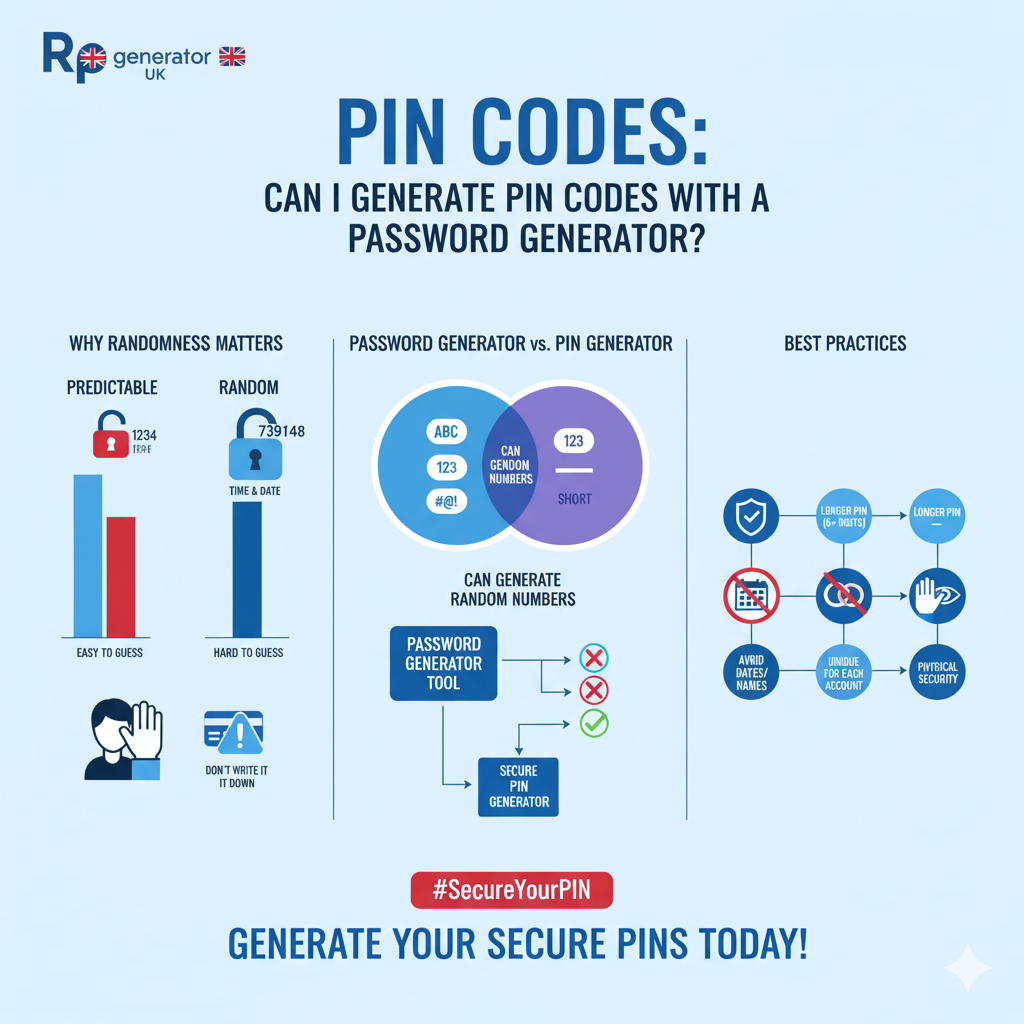
This leads to a really good question that many people have: “Can I generate PIN codes with a password generator?” It seems like a simple question, but the answer is important for keeping your money and your information safe.
Let me tell you a quick story about my friend, Mark. Mark got a new debit card and went to the bank to set up his PIN. He stood there for a long time, thinking. He didn’t want to use his wedding anniversary, but he also didn’t want a random number he might forget. In a moment of weakness, he picked the year he graduated from high school. A few weeks later, he was talking to a new coworker, mentioned when he graduated, and realized he had just given away his bank PIN to a near-stranger! He felt sick to his stomach and immediately went to the bank to change it. This time, he used a tool to generate a truly random PIN.
This guide will help you avoid Mark’s mistake. We will explore everything you need to know about creating safe, secure PIN codes. We’ll look at whether you can use a standard password generator for this job, how to do it correctly, and when it might be better to use a special PIN generator tool. By the end, you’ll be an expert on keeping your digital life secure with strong, randomly generated PINs.
What Exactly Is a PIN Code?
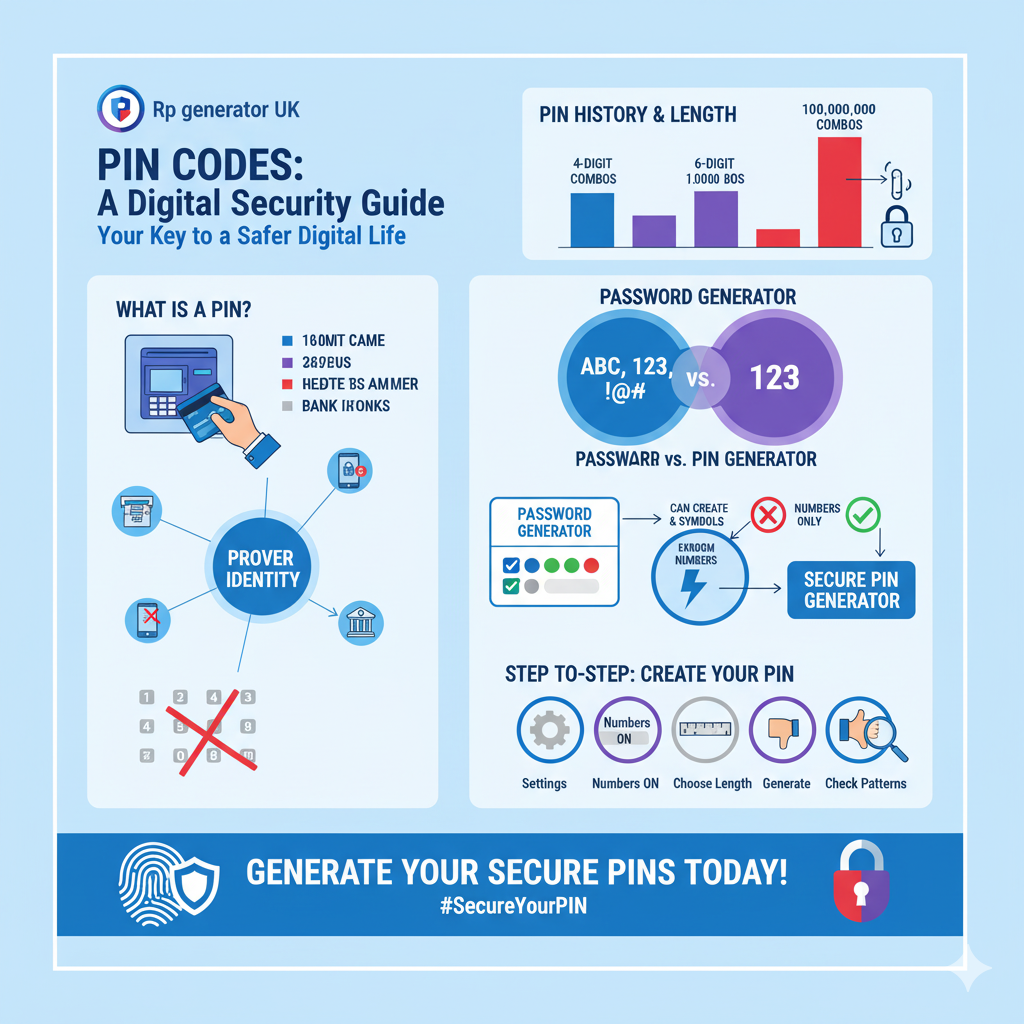
Before we get into the tools, let’s talk about what a PIN code is. PIN stands for “Personal Identification Number.” Think of it as a secret password made only of numbers. You use a PIN to prove that you are really you.
You use PIN codes all the time:
- At the ATM to get money from your bank account.
- When you pay with a debit or credit card at the store.
- To unlock your smartphone.
- To get into your office building.
- To log in to certain banking apps on your phone.
The reason we use PINs is that they are simple and fast. It’s much quicker to type four or six numbers on a small keypad than to type a long, complex password with letters and symbols. But this simplicity also creates a challenge: how do you make a short number that is also really hard for someone else to guess?
A Little History: From 4 Digits to 6 and More
A long time ago, when PINs were first invented for ATMs, almost everyone used a 4-digit PIN. This gives you 10,000 possible combinations (from 0000 to 9999). Back then, that seemed like a lot.
But today, computers are super fast. A clever person with the right tools could try all 10,000 combinations in just a few minutes if they had unlimited chances. That’s why many things have moved to longer PINs.
- 4-digit PINs: Still common for some basic things.
- 6-digit PINs: Now the standard for most smartphones and many banking apps.
- 8-digit PINs: Used for very high-security situations.
Every extra digit makes your PIN ten times safer. A 6-digit PIN has 1,000,000 possible combinations, which is 100 times more secure than a 4-digit one! This is why using a good random PIN generator to create the longest PIN possible is such a smart move.
Password Generators vs. PIN Generators: What’s the Difference?
To understand if you can use a password generator to make a PIN, we first need to see what these two tools are supposed to do.
What Is a Password Generator?
A password generator is a tool made to create long, complex passwords. These passwords are designed to be very difficult for both people and computers to guess. A good secure password generator usually:
- Uses a mix of uppercase letters (A, B, C), lowercase letters (a, b, c), numbers (1, 2, 3), and symbols (!, @, #).
- Lets you choose how long the password should be (usually 12-20 characters).
- Makes sure the password is truly random.
You can find these in password managers like LastPass, Bitwarden, or as free online password generator tools.
What Is a PIN Generator?
A PIN generator, on the other hand, is a special tool just for making numeric codes. These tools are built with one goal in mind: creating a secure numeric code. A good secure pin generator usually:
- Creates codes using only numbers (0-9).
- Lets you pick the length, like a 4 digit pin generator or a 6 digit pin generator.
- Often has special settings to avoid bad patterns, like “1111” or “1234”.
- Is focused on making a unique numeric pin that is hard to guess.
The Main Differences in Simple Terms
| Feature | Password Generator | PIN Generator |
| What it makes | Letters, numbers, symbols | Numbers only |
| How long it is | Usually long (12+ characters) | Usually short (4-8 digits) |
| Special tricks | Can make pronounceable passwords | Can avoid number patterns |
| Best for | Website logins, email accounts | Bank cards, phone locks |
So, a password generator is like a master chef who can cook any dish, while a PIN generator is like a master baker who only makes bread. The baker is really good at bread, but the chef can also make bread if you give the right instructions.
How to Use a Password Generator to Create a PIN (Step-by-Step)
Now for the big question: Can you really use a password generator to make a PIN? Yes, you absolutely can! You just need to give it the right instructions. Here is a simple guide on how to turn any password generator into a numeric pin generator.
Step 1: Open Your Password Generator
First, open the tool you want to use. This could be:
- The generator inside your password manager app.
- A password generator website.
- A browser extension.
Just make sure it’s a tool you trust.
Step 2: Change the Character Settings (The Most Important Step!)
This is where you tell the generator to only use numbers. You will need to find the settings and make some changes:
- Turn OFF uppercase letters. Look for a box that says “A-Z” or “Uppercase” and uncheck it.
- Turn OFF lowercase letters. Find the box that says “a-z” or “Lowercase” and uncheck it.
- Turn OFF symbols. Find the box that says “!@#$%” or “Symbols” and uncheck it.
- Make sure ONLY numbers are ON. The only box that should be checked is the one that says “0-9” or “Numbers”.
Now, your password generator has been turned into a random number pin generator.
Step 3: Choose Your PIN Length
Next, tell the generator how many numbers you want.
- For a basic ATM or lock code, choose 4 digits.
- For a phone or most banking apps, choose 6 digits.
- For extra security, choose 8 digits if the system lets you.
A 6-digit PIN generator setting is generally the best choice for most things today.
Step 4: Generate Your PIN
Click the button that says “Generate” or “Create.” That’s it! The tool will give you a random set of numbers. This is your new, secure PIN.
Step 5: Give It a Quick Check
Sometimes, even with the right settings, a generator might give you a number that has a simple pattern. Take a quick look at your new PIN. Does it look like any of these?
- Repeating digits: 1111, 2222, 5555
- Sequential patterns: 1234, 5678, 4321
- Keyboard patterns: 2580 (numbers in a straight line down the middle)
If you see a pattern like this, just click “Generate” again to get a new one. A good, strong pin generator should avoid these, but it’s always good to double-check.
Advanced Settings for Extra Security
Some password generator tools have extra options that can help you make an even safer PIN. Look for settings like:
- “No repeating characters”: This tells the generator not to use the same number twice.
- “No sequential characters”: This tells it not to use numbers in order.
If your tool has these options, using them is a great idea. This turns your tool into a powerful non-repeating pin generator and non-sequential pin generator all in one.
When to Use a Dedicated PIN Generator
While you can use a password generator, sometimes a special PIN generator is just easier and better. Think of it like this: you can use a big kitchen knife to slice a tomato, but a small serrated tomato knife does a better job with less mess.
A dedicated pin code creator is built only for one job: making safe numeric codes. Here’s why you might choose one:
Why Special PIN Tools Can Be Better
- Simpler to Use: They usually have a very clean, simple screen with just the options you need for PINs.
- Avoids Bad Patterns Automatically: Many pin generator tools are built to never create codes like “0000” or “1234” without you having to do anything.
- Super Fast: They are made to give you a secure numeric code instantly.
- Special PIN Features: They often have built-in options like “no repeating digits” that you might not find in a regular password generator.
What to Look For in a Good PIN Generator
If you decide to use a special tool, here are some things to look for:
- Customizable Length: Can it work as a 4 digit pin generator and a 6 digit pin generator?
- Pattern Avoidance: Does it promise to avoid easy-to-guess patterns?
- Bulk Generation: Can it create many PINs at once if you need them?
- Secure and Private: It should use a strong random method and NOT save the PINs it creates.
- Works Offline: Can it generate PINs without an internet connection? This is a great security feature.
Some Good PIN Generators to Try
There are many great online pin generator tools out there. Here are a few popular ones that are known for being safe and effective:
- Random: A very famous site for true randomness. It has a great pin code online tool.
- Giga Calculator PIN Generator: A simple, no-fuss numeric pin generator.
- Make Me APassword: Offers a strong pin generator with lots of options.
Using a dedicated bank pin generator or phone pin generator from a trusted site can give you peace of mind that your PIN is truly random and secure.
Making Your PIN Super Secure: Best Practices
Generating a random PIN is a fantastic first step. But to be truly safe, you need to follow some simple rules. Think of it like locking your door—generating the PIN is like getting a good lock, but these practices are like actually remembering to lock it every night.
1. Length is Your Best Friend
This is the easiest way to make your PIN more secure. Always use the longest PIN the system will allow.
- A 4-digit secure code has 10,000 possible combinations.
- A 6-digit secure code has 1,000,000 possible combinations.
As you can see, a 6-digit random code is 100 times harder to guess than a 4-digit random code. If you have a choice, always go for the longer one. This is the single most effective thing you can do for PIN security.
2. Avoid the Obvious: The Most Common PIN Mistakes
Humans are bad at being random. We tend to pick numbers that mean something to us or that make a pattern. This is a huge security risk. Here are the most common and dangerous PINs to avoid:
- Sequences: 1234, 1111, 0000. (The PIN “1234” is used by almost 11% of people!).
- Dates: Your birthday, your wedding year, your child’s birthday. (Someone can find this on your social media).
- Keyboard Patterns: 2580 (a straight line down a keypad), 1397 (the corners).
- Famous Numbers: 867-5309 (from a song), 007 (James Bond).
This is why using a random pin generator is so much safer. It doesn’t have a birthday or a favourite song, so it can’t create a predictable PIN.
3. One PIN Per Place
Never use the same PIN for your bank card, your phone, and your work door. If someone finds out one of your PINs, they will try it everywhere else. It’s like using the same key for your house, your car, and your office. If you lose that one key, you’ve lost everything.
Generate a unique PIN for every single device or account. It might seem like a lot to remember, but it’s worth it for the security. You can use a secure password manager app to store your PINs safely.
4. Physical Security Matters
Your PIN can be super strong, but it won’t matter if someone watches you type it in. Always be aware of your surroundings.
- Shield the keypad: Use your hand and body to block anyone’s view when you enter your PIN at an ATM or store.
- Check for weird devices: Before using an ATM, give it a little wiggle. Thieves sometimes put “skimmers” on top of the real keypad to steal your PIN number.
- Don’t write it down: Never write your PIN on your debit card. That’s like giving a thief the key to your bank account and telling them which door it opens.
Common Mistakes People Make with PINs (And How to Avoid Them)
Even when we try to be careful, it’s easy to make mistakes. Let’s look at some of the most common slip-ups and how to fix them.
Mistake 1: Using Personal Information
This is the biggest one. People use parts of their phone number, their address, or their birth year because it’s easy to remember.
- Why it’s bad: A thief can often find this information online. A quick look at your Facebook profile might give them your birth year or anniversary date.
- The fix: Use a random pin generator. A strong numeric password has no connection to your life whatsoever.
Mistake 2: Reusing PINs
We talked about this, but it’s worth repeating. Using the same PIN everywhere is convenient, but it’s incredibly risky.
- Why it’s bad: If a website you use gets hacked and your PIN is stolen, the thieves will immediately try that PIN on major banking and email sites.
- The fix: Use a pin creator online to create a new, unique PIN for every service. A good password manager can help you keep track of them all.
Mistake 3: Writing PINs Down in Obvious Places
If you must write down a PIN (which is not recommended), where do you put it? In your wallet? Taped to the back of your phone?
- Why it’s bad: If you lose your wallet, you’ve lost your cards AND the PINs to go with them.
- The fix: If you absolutely must write it down, don’t write “ATM PIN = 5829.” Instead, write it in a way only you would understand, like “Dad’s old address = 5829” (even if it’s not his real address). Better yet, store it in an encrypted password manager.
Mistake 4: Creating Visual Patterns
Instead of random numbers, many people create shapes on the keypad.
- Why it’s bad: These patterns are very easy for someone to guess, especially if they are watching you from a distance. They can see the shape your finger is making.
- The fix: Use a pin generator tool that creates a pin with no patterns. A truly random PIN won’t form a square, a line, or an X on the keypad.
A Tour of PIN Generation Tools
There are many ways to generate a PIN instantly. Let’s take a quick tour of the different kinds of tools you can use.
1. Online PIN Generators
These are websites you visit in your browser. You just go to the site, click a button, and get a PIN.
- Examples: Random.org, GigaCalculator
- Good because: They are free and easy to use on any computer or phone.
- Be careful: Make sure the website is secure (look for “https://” in the address) and has a good reputation. A good online pin generator should not save the PINs it creates for you.
2. Password Managers
Many password managers, like LastPass and Bitwarden, have a built-in PIN password generator.
- Good because: They are very secure and can also save the PIN for you in an encrypted vault.
- Good because: They often work as both a password generator and a numeric pin generator.
- Be careful: Some of the best features might require a paid subscription.
3. Mobile Apps
You can download apps to your phone that work as a mobile pin code maker.
- Good because: They work even if you don’t have an internet connection.
- Good because: They are always with you when you need a new PIN on the go.
- Be careful: There are many apps, and some are better or more secure than others. Read reviews and stick to well-known apps.
4. Browser Extensions
These are small programs that add a PIN generator to your web browser, like Chrome or Firefox.
- Good because: They are very convenient when you are signing up for a new website.
- Good because: They can often fill in the PIN for you.
- Be careful: Make sure you trust the company that made the extension, as it can see a lot of your web activity.
No matter which tool you choose, the most important thing is that it acts as a secure pin generator and creates a truly non-guessable pin.
Thinking Ahead: The Future of PINs
PINs have been around for a long time, but they are always changing. Let’s look at what’s next for pin security.
More Than Just a Number: Multi-Factor Authentication
The safest systems don’t just rely on a PIN. They use something called Multi-Factor Authentication (MFA). This means you need two or three things to get in:
- Something you KNOW: Your PIN or password.
- Something you HAVE: Your phone, a special key card, or a small token.
- Something you ARE: Your fingerprint, your face, or your voice.
When you use your phone to approve a login, that’s MFA. You know your password, and you have your phone. Using a PIN as part of two factor authentication pin makes it much, much harder for bad guys to break in.
Fingers and Faces: Biometrics
Many new phones and laptops use biometrics instead of, or along with, a PIN.
- Fingerprint scanners: You touch your finger to a sensor to unlock your device.
- Facial recognition: The camera looks at your face to make sure it’s you.
These are very convenient, but they aren’t perfect. That’s why many systems still ask for a PIN as a backup. A digital security pin is still a very important part of keeping things safe.
Smarter PINs
In the future, PINs might get even smarter. Some ideas include:
- PINs that change: A PIN that is different every time you use it.
- Location-based PINs: A PIN that only works when you are in a specific place.
- Behavioral PINs: A system that learns how fast you type your PIN and will block someone who types it differently.
These new ideas are all about making your authentication pin even more secure and personal.
Putting It All Together: Real-Life Examples
Let’s walk through how you would use a pin generator in a few real-life situations.
Example 1: Getting a New Debit Card
You just got a new debit card in the mail and need to set a PIN.
- Go to a trusted PIN generator website or open your password manager’s generator.
- Set it to “Numbers Only” and choose a length of 4 or 6 digits (ask your bank what they allow).
- Turn on any “Avoid Patterns” settings.
- Click Generate. Let’s say it gives you 7-3-9-1-4-8.
- Look at it. Does it have a pattern? No. Does it use your birthday? No. It’s a great high-security pin.
- Memorize it. Say it to yourself a few times: “739148.”
- Go to an ATM and change your PIN to this new number.
Example 2: Setting Up a New Smartphone
You just bought a new phone and it’s asking for a lock screen PIN.
- Since this phone has all your personal information, you want a strong PIN.
- Open your PIN generator and set the length to 6 digits.
- Generate a PIN. Let’s say it gives you 5-0-2-8-1-9.
- Enter this PIN on your new phone.
- Test it. Lock your phone and unlock it a few times to make sure you remember the number.
- Set up biometrics (like a fingerprint) as a backup, but keep your strong PIN as the main defence.
Example 3: Creating PINs for Your Kids
You want to set up parental controls on the family tablet, but you need a PIN your kids won’t guess.
- Use a 6-digit PIN generator to create a strong PIN.
- Generate a separate PIN for each child if they have their own devices.
- Store these PINs securely in your password manager, labeled “Tablet PIN – Tim” and “Tablet PIN – Lisa.”
- Do NOT use their birthdays or names! Kids are smart and will guess those in a second.
- Use the generated PINs to set up the controls.
What to Do If You Run Into Trouble
Sometimes things don’t go perfectly. Here are some common problems and easy solutions.
Problem: “My generated PIN looks too random, I can’t remember it!”
This is actually a good problem to have! It means your PIN is secure.
- Solution: Don’t try to memorize it as one long number. Break it into smaller chunks. For 739148, think “739” and “148”. Use it a few times, and the muscle memory in your fingers will help you remember it. If you still can’t, just generate a new one.
Problem: “The system won’t accept the PIN I generated.”
- Solution: First, double-check that you are typing it correctly. Then, check if the system has special rules. Some banks don’t allow PINs that start with 0 or have repeating digits. Read the rules and then generate a new PIN that follows them.
Problem: “I think someone might know my PIN.”
- Solution: Don’t wait. Change it immediately. Go to an ATM, log in to your account online, or visit your bank to get a new PIN. It’s always better to be safe than sorry. Use a secure pin generator to create the new one.
Problem: “I need to create 20 different PINs for my office.”
- Solution: Look for a tool that offers “bulk generation.” Some online pin generator websites can create a whole list of unique, secure PINs for you all at once. This is a huge time-saver.
Conclusion:
So, let’s go back to our original question: Can I generate PIN codes with a password generator?
Yes, you absolutely can. By changing a few settings, you can turn any good password generator into a powerful numeric pin generator. Just remember to turn off letters and symbols and set the length to 4, 6, or 8 digits.
For an even easier experience, you can use a dedicated pin generator website or tool. These are built specifically for creating safe numeric codes and often have extra features to avoid bad patterns automatically.
The most important lesson is this: stop trying to think of your own PINs. Humans are predictable. We use birthdays, anniversaries, and simple patterns. Computers are not predictable. A random pin generator will give you a strong 4-digit pin or a strong 6 digit pin that has no meaning and no patterns, making it much, much harder for anyone to guess.
By taking the simple step of using a pin code generator, you are making a huge leap in your personal cybersecurity. You are protecting your money, your personal information, and your digital life.
Your next steps are clear:
- Look at the PINs you currently use. Are any of them weak or reused?
- Choose a tool. Pick a good password manager or a trusted online pin generator.
- Start generating. Replace your old, weak PINs with new, randomly generated ones.
- Stay safe. Always shield your PIN when you type it in.