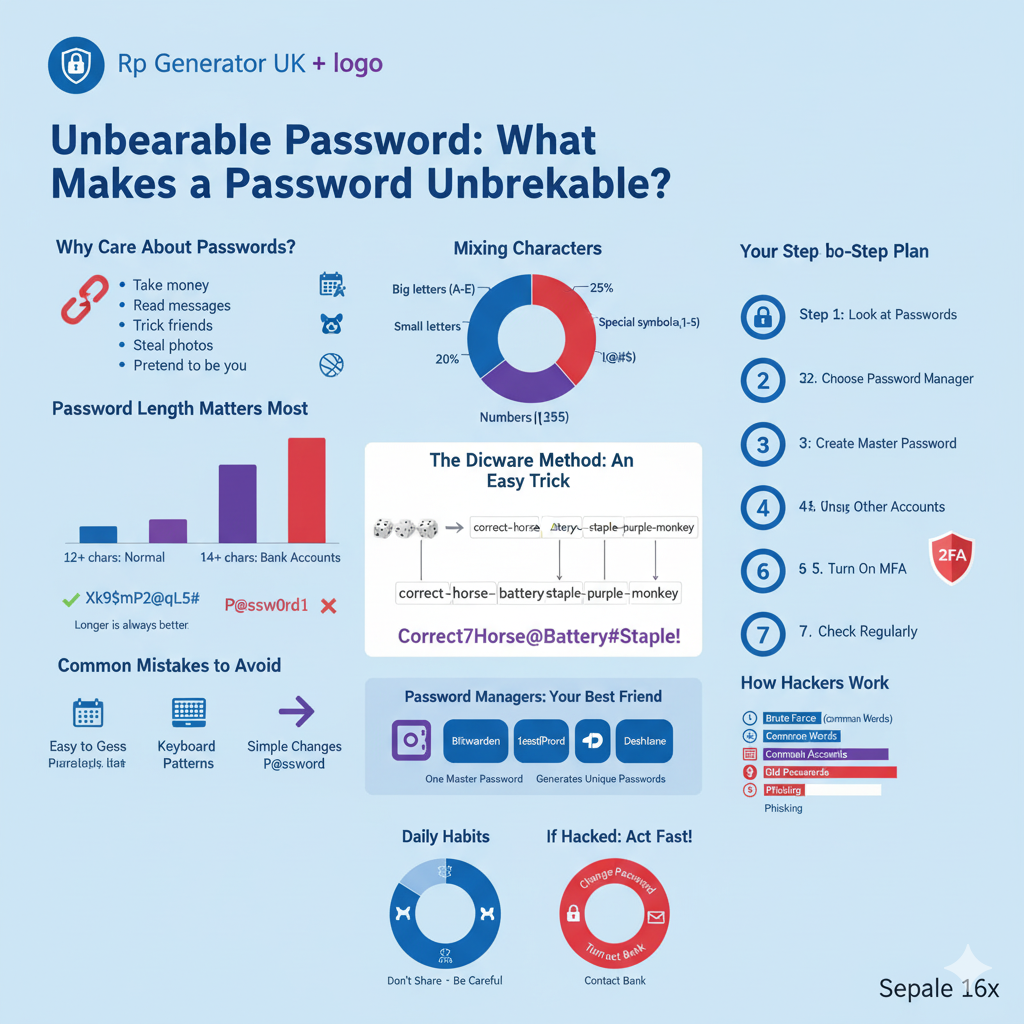


Why You Need Safe Passwords
Let me tell you about Sarah. One morning, she found her email was hacked. Someone stole her password and got into her bank account, Facebook, and shopping sites. Why? She used the same easy password everywhere: “Sarah1234”.
This happens every day to many people. But there is a simple fix. You can use a password generator and a password manager to stay safe. Plus, you don’t need to remember lots of hard passwords.
In this guide, I’ll show you how these tools work. Also, I’ll teach you step-by-step how to use them to protect your accounts.
What is a Password Generator?

A password generator is a tool that makes passwords for you. You don’t need to think of passwords yourself. The tool does it. These passwords are strong and hard to guess.
How It Makes Passwords
Think of a password generator like a lottery machine. But instead of picking numbers, it picks random letters, numbers, and symbols. It mixes them to make a strong password like “Kp#9mX$2rT@4vL”.
A random password generator uses computer math to make sure each password is different. So, if a hacker steals one password, they can’t guess your other ones.
Why Random is Better
Let me tell you about Tom. He made passwords by adding numbers to words he liked. Like “Football2024” and “Baseball2024”. One day, hackers stole his Football2024 password. Because Tom’s passwords were similar, hackers guessed his other passwords easily.
This is why random password creation is important. A truly random password has no pattern. So, it’s almost impossible for hackers to guess it.
What is a Password Manager?
A password manager is like a safe for your passwords. Instead of writing passwords on paper, you keep them in a secure password vault.
The Main Parts
Every password management app has three parts:
First, the vault. This is where your passwords live. The vault uses password encryption to scramble your passwords so nobody can read them.
Second, the master password. This is the ONE password you remember. It opens your vault. Think of it like a key to a treasure box.
Third, the autofill feature. This fills in your username and password automatically on websites. So, you don’t type them.
How It Keeps You Safe
Lisa was worried. “What if someone hacks the password manager?” This is a good question. But password managers use strong protection to keep your data safe.
Here’s how: When you save a password, the password manager software scrambles it. Even if hackers break in, they can’t read your passwords without your master password. Your passwords are safe.
How They Work Together
Now here’s the magic. A password manager and generator together make a powerful team for your safety.
The Perfect Team
Think of it this way: The password generator is like a chef who makes great meals. The password manager is like a fridge that keeps those meals fresh. Together, they make sure you always have safe passwords.
When you make a new account, the password generator creates strong passwords automatically. Then, the password manager saves it in your encrypted password storage. You never have to think about it.
Step-by-Step: Making Your First Password
Let’s do this together. Imagine you’re making a new email account.
Step 1: You go to the email website and click “Create Account”. They ask for a password.
Step 2: You click on your password manager browser plugin. A small box appears.
Step 3: The password manager shows its strong password generator. You see choices like how long the password should be.
Step 4: You click “Generate Password”. Instantly, the random password creator makes a strong password like “Rt$8pL#2mK@9xN”.
Step 5: The automatic password saving starts. Your password manager asks, “Save this password?” You click “Yes”.
Step 6: The password manager stores it in your digital password vault. It also saves your username and website.
Done! This takes just seconds. Plus, you never had to think of a password.
Real Example: James’s Story
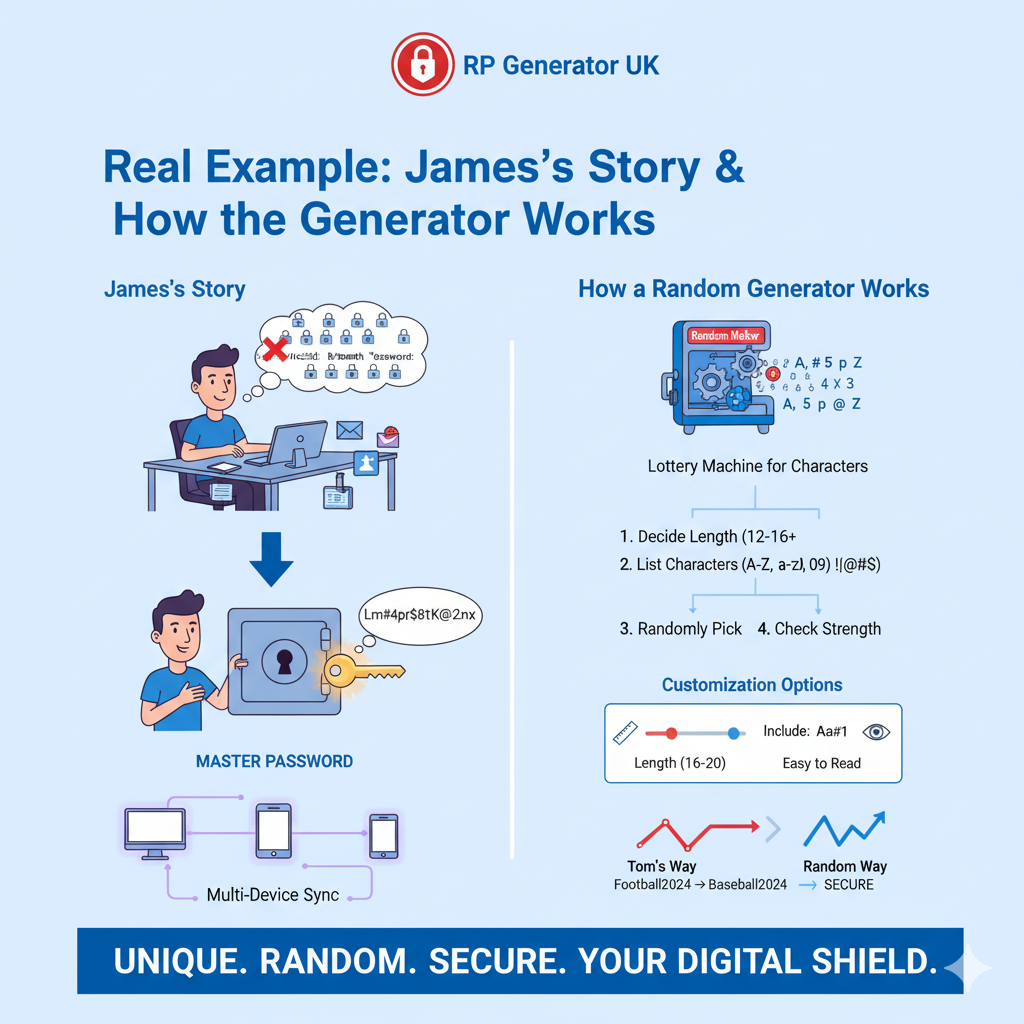
Meet James. He’s a designer with 50 online accounts: email, bank, social media, shopping, work tools, and more. Before, James used the same password everywhere. He knew it wasn’t safe, but he couldn’t remember 50 passwords.
Then James found online password management. Here’s what changed:
First, James got a password manager for PC and made a strong master password. Next, he used it to generate unique passwords for all 50 accounts. The password generator tool made passwords like “Lm#4pR$8tK@2nX” for each site.
James spent one afternoon changing all passwords. The autofill login credentials saved each new password. Now James has 50 unique, strong passwords, but only remembers one master password.
Also, James uses multi-device password sync. His passwords work on his computer, phone, and tablet. So, he can log in safely from any device.
How the Generator Works
You might wonder: “How does a password generator algorithm work?” Let me explain simply.
The Random Maker
Inside every password generator is a random number maker. Computers can’t pick truly random numbers alone. Instead, they use math formulas that look random.
Think of rolling dice. The number seems random. The password generator uses math “dice rolls” to pick random letters, numbers, and symbols.
How It Picks Characters
When you want a password, the generator does this:
First, it decides how long it should be. Most experts say at least 12-16 characters.
Second, it makes a list of all letters, numbers, and symbols it can use.
Third, it randomly picks from this list until the password is long enough.
Finally, it checks if the password is strong. If not, it makes a new one.
Making It Your Way
Most password generator tools let you choose:
- Length: Longer passwords are harder to crack. Many people pick 16 or 20 characters.
- What to Include: You can use uppercase letters, lowercase letters, numbers, and symbols.
- Easy to Read: Some skip confusing letters like “O” (letter) and “0” (zero).
For example, for your bank password, you might want a very long password with everything. For a less important site, you might pick something shorter.
Setting Up Your Password Manager

Never used a password manager before? Don’t worry. The setup is easy. Let’s do it step by step.
Picking One
First, choose a password manager. There are many in 2025. Some popular ones:
- Best password manager 2025 – both free and paid
- Free password manager – good for basic needs
- Password manager for Chrome – works in your browser
- Password manager for mobile – for your phone
They all work similarly. So, pick what feels right for you.
Easy Setup Steps
Step 1: Download It
Go to the website of your password management solution. Download the app. Most work on computers, phones, and browsers. Install it by following the instructions.
Step 2: Make Your Master Password
This is the most important step. Your master password is the only password you’ll remember. So, make it strong but easy to remember.
How to make a good master password:
- Use at least four random words, like “BlueLemonGuitarCloud”
- Make it at least 20 letters long
- Don’t use birthdays or names
- Write it down and keep it somewhere safe (not on your computer)
Step 3: Add Browser Extension
Most password managers have a password manager extension for your browser. This allows automatic password fill.
Go to your browser’s store and search for your password manager. Click “Add” and give it permission. The icon will show in your browser.
Step 4: Bring In Old Passwords
If you have passwords saved in your browser already, you can move them to your password manager. It will guide you. So, you don’t have to type them all again.
Step 5: Start Making New Passwords
Now you’re ready to use password generator and storage. Visit one of your accounts and change the password using the generator. The password manager will save it automatically.
Making a Safe Master Password
Remember Sarah? She learned and made a master password with random words. She picked “PurpleDragonTacoMountain23!” – four random words plus a number and symbol.
This is easy for Sarah to remember (she pictures a purple dragon eating tacos on a mountain). But it would take hackers billions of years to guess. That’s a strong master password.
How Autofill Works Safely
One great feature is password autofill. This fills in your username and password automatically. Plus, it does this safely.
How Autofill Works
When you visit a website, your password manager browser plugin looks at the website address. It checks if you have a saved password for that site.
If yes, a small icon appears. You click it, and it fills in everything. This takes seconds. Plus, your password never shows on screen.
Stopping Fake Websites
Here’s extra safety. Let’s say someone emails you a fake bank website. The fake site looks real. But the address is different.
If you typed your password, you might not notice it’s fake. Hackers would steal it. But with a password manager, something different happens.
Your password manager checks the address. It sees this isn’t your real bank. So, it doesn’t fill in your password. This warns you something is wrong. Password managers protect against phishing automatically.
Using It on All Devices
Modern password managers offer multi-device password sync. Your passwords work on all your devices.
How: When you save a password on your computer, it uploads an encrypted copy to secure cloud storage. Your phone downloads this. When you need it on your phone, it unlocks using your master password.
The important part: your passwords travel encrypted. Even if someone steals the data, they can’t read it. So, cloud password manager services are safe.
Why Your Passwords Stay Safe
Let’s talk about what makes password managers secure. The key is password encryption – scrambling data so only you can read it.
How Scrambling Protects You
Imagine a secret message. You scramble it with a code. Only someone with the code can read it. This is encryption.
When you save a password, it gets scrambled using complex math. These formulas are so hard that even powerful computers would need millions of years to crack them.
Your master password is the key. Without it, the scrambled passwords are useless. So, even if hackers steal data from a password manager company, they can’t read your passwords.
Zero-Knowledge Safety
Many password managers use “zero-knowledge” design. This means the company never knows your master password or other passwords.
How: When you make your master password, your device uses it to make a key. This key never leaves your device. The company only stores scrambled data – they never have the key.
So, even if the company wanted to read your passwords, they couldn’t. This gives extra safety.
Common Mistakes to Avoid
Even with these tools, people make mistakes. Let’s look at common errors.
Mistake #1: Using Same Password Everywhere
Before password managers, many people use one password for many sites. This is password reuse, and it’s dangerous.
Think: If a hacker gets your password from one site, they’ll try it on other sites. If you used it everywhere, they can access all your accounts.
Fix: Use your generator to make a unique password for every site. Your password manager stores them all.
Mistake #2: Weak Passwords
Easy passwords like “password123” are simple to guess. Hackers have lists of common passwords. They try these first.
Fix: Always use your strong password generator. Make it at least 12 characters with all types. This makes passwords hacker-proof.
Mistake #3: Sharing Passwords Unsafely
Sometimes people share passwords with family. Like sharing streaming service passwords. This can be risky.
Fix: Many password managers have safe sharing. You can share through the password manager. It stays encrypted, and you can stop sharing anytime.
Mistake #4: Keeping Old Weak Passwords
Maybe you made an account five years ago with a weak password. You’ve used a password manager for a year, but never updated that old password.
Fix: Spend an afternoon checking passwords. Look for weak or old ones in your password manager. Use the password generator to make new strong ones.
Better Security Steps
Once you’re comfortable, try these advanced features.
Two-Step Check
Two-factor authentication (2FA) adds extra safety. Even if someone steals your password, they can’t get in without the second step.
How: After typing your password, the website asks for more information. Like:
- A code sent to your phone
- A code from an app
- Your fingerprint
Many password managers can store these codes too. So, everything is in one place.
Password Health Check
Modern password management apps check your passwords. They tell you:
- Which passwords are weak
- Which passwords you reused
- Which passwords are old
- If your passwords were stolen in hacks
For example, if your email password was stolen, the password manager warns you. Then you can change it right away.
Safe Password Sharing

Families and teams often share passwords. Maybe you share Netflix with your partner.
Password managers offer secure sharing. You can share a password without them seeing the actual characters. They can use it to log in, but the password stays hidden.
Plus, you control sharing. You can give access and take it away anytime.
Your First Week Plan
Let’s make an easy plan for your first week.
Day 1: Start
Morning: Pick and install your password manager.
Afternoon: Make a strong master password. Write it down safely.
Evening: Add the extension to your browser. Look around the app.
Day 2: Check What You Have
Morning: Move passwords from your browser to the password manager.
Afternoon: Look at your passwords. See which are weak or reused.
Evening: Make a list of your most important accounts (bank, email, main social media).
Day 3-4: Fix Important Accounts
Day 3: Change your bank passwords. Use the strong password creator to make new 16-character passwords.
Day 4: Change your email passwords. Turn on two-step check.
Day 5-6: Fix Other Accounts
Day 5: Change passwords for shopping sites, social media, and streaming.
Day 6: Change passwords for work and any other sites.
Day 7: Organize and Test
Morning: Put your passwords in folders in your password manager.
Afternoon: Set up multi-device sync and add to your phone.
Evening: Test by logging into sites from different devices.
Real Success Stories
Let’s see how real people won with these tools.
Maria: From Messy to Easy
Maria, a teacher, had notebooks full of passwords everywhere. She used simple passwords she could remember. Managing everything was hard and stressful.
After getting a password manager with generator, Maria’s life changed. She spent one weekend updating all 80 accounts. The password generator tool made unique passwords for each.
Now, Maria logs in easily. The autofill feature does everything. She doesn’t worry about forgetting passwords. Plus, when a shopping site got hacked, only that one password mattered. Her other accounts were safe because each had unique passwords.
David: Business Success
David runs a small marketing agency with 12 workers. Before, password sharing was messy. People wrote passwords on sticky notes or sent them by email.
David got a business password management solution. Each team member got their own account. The generator made strong passwords for all company accounts. Team passwords went in shared folders.
Results:
- No more password security problems
- New workers got access quickly
- When workers left, access was removed fast
- The company passed security checks easily
Emma: Coming Back from Hacking
Emma woke up to find her Instagram hacked. The hacker posted spam and changed her password. Worse, Emma used the same password on other sites.
After getting her Instagram back, Emma immediately set up a secure password manager. She used the generator to make new unique passwords for every account. She turned on two-step checking everywhere. Now Emma feels safe online.
Tips for Staying Safe Long-Term
Now you know how these tools work. Here are tips to stay safe forever.
Change Passwords Sometimes
Even with strong passwords, update them sometimes. Set a reminder every 6-12 months. Use your password generator to make fresh passwords for important accounts like banking and email.
Watch for Hacks
Many password managers include breach watching. They check if your emails or passwords appeared in known hacks. If they find one, they tell you right away.
When you get an alert:
- Stay calm
- Open your password manager
- Change that password with the generator
- Turn on two-step check if possible
- Check other accounts for weird activity
Keep Your Manager Updated
Companies release updates that fix problems and add features. Always install updates when available.
Most password managers update automatically. But check sometimes, especially on your password manager for PC or phone.
Protect Your Devices
Your password manager is only as safe as your device. Protect devices by:
- Using strong device passwords
- Installing updates quickly
- Using antivirus software
- Being careful about downloads
- Not breaking your device’s security
If your device gets a virus, it might try to steal passwords. Good device safety stops this.
Teach Your Family
If you share devices with family, teach them about password safety. Show them:
- How to use the password manager
- Why not to reuse passwords
- How to spot fake websites
- When to make new passwords
A family that practices good password habits stays safer together.
Common Problems and Fixes
Like any tool, password managers sometimes have issues. Here are common problems and solutions.
Problem 1: Forgot Master Password
This is scary. If you forget your master password, you can’t access your vault. Because of encryption, the company can’t help you recover it.
Prevention:
- Write your master password on paper and store safely
- Set up emergency access with family
- Use recovery options your password manager offers
Some let you pick an emergency contact. If locked out, you request access. After waiting (24 hours to a week), your contact can help you.
Problem 2: Autofill Not Working
Sometimes autofill doesn’t work.
Fixes:
- Make sure your extension is on
- Refresh the page
- Check if the website is saved
- Try copying and pasting
- Update to the latest version
Problem 3: Not Syncing
If passwords aren’t syncing between devices:
First, check internet connection. Syncing needs internet.
Second, make sure you’re logged into same account on all devices.
Third, try manual sync. Most have a “sync now” button in settings.
Fourth, if still problems, log out and back in.
Problem 4: Browser Fighting
Sometimes your browser’s password saver fights with your password manager extension.
Fix: Turn off your browser’s password saver. Go to browser settings and turn off saving passwords. This lets your extension work properly.
What’s Coming Next
Technology keeps changing. Here’s what’s coming in 2025 and beyond.
No More Passwords
Many companies work on passwordless login. Instead of passwords, you might use:
- Fingerprints or face recognition
- Security keys (physical devices)
- Special codes on your device
But we’re in transition. Most sites still need passwords. So, password managers are still important. Plus, many password managers are adding these new methods.
Smart Computer Help
Password management in 2025 includes smart computer help. It helps by:
- Finding suspicious logins
- Knowing when to change passwords
- Spotting fake websites better
- Suggesting improvements
For example, smart help might notice you use same password on many sites. It could make new passwords and offer to update all accounts for you.
Better Fingerprint Use
More password managers work with your device’s fingerprint or face scanner. Instead of typing your master password each time, you can use:
- Your fingerprint
- Your face
- Your voice
This makes password managers easier while staying safe.
Conclusion:
Using a password generator together with a password manager is the best way to protect online accounts today. These tools work together to:
- Make strong unique passwords for every account
- Store them safely in an encrypted password vault
- Fill them in automatically with password autofill
- Sync across all your devices with multi-device sync
- Protect you from phishing attacks and hackers
The best part? After setup, everything is automatic. You don’t think about passwords anymore. The best password manager 2025 tools and random password generators do all the work.
Remember:
- Start today – don’t wait
- Make a strong master password
- Use the generator for every new account
- Update old weak passwords
- Turn on two-step checking
- Keep your devices safe
Your digital identity protection starts with good passwords. With a password manager with a generator feature, you get both security and convenience. You can manage passwords safely without stress.
Take the first step today. Download a secure password app, set it up, and start creating secure passwords for your accounts. Your future self will thank you.
Stay safe online!
30 FAQS
🟢 1. What does a password generator do?
A password generator is a tool that creates strong, random passwords for you automatically. It helps you make passwords that hackers can’t easily guess.
🟢 2. What is a password manager?
A password manager is a digital vault that stores all your passwords safely in one place so you don’t have to remember them yourself.
🟢 3. How do password generators and managers work together?
They work together by creating strong passwords using the generator and saving them automatically in the password manager for later use.
🟢 4. Why should I use both a generator and a manager?
Using both gives you extra security. The generator makes strong passwords, and the manager stores them safely so you don’t forget them.
🟢 5. Can I make a new password with just one click?
Yes, most password managers have a built-in generator that lets you make a strong password with just one click.
🟢 6. Do I need to remember all generated passwords?
No, you don’t. The password manager remembers them for you and fills them in automatically when you log in.
🟢 7. How does a password manager fill passwords automatically?
It uses an autofill feature that detects login boxes on websites and fills in your username and password securely.
🟢 8. Are generated passwords really safe?
Yes. Generated passwords are random, long, and complex — making them very hard for hackers to guess or crack.
🟢 9. How can I access my saved passwords on different devices?
You can sync your password manager across your phone, tablet, and computer using a secure cloud connection.
🟢 10. What happens if I lose my device?
Don’t worry — your passwords are encrypted and protected by a master password or biometric lock (like fingerprint or face ID).
🟢 11. What is a master password?
A master password is the one strong password you create to unlock your password manager. It’s the only password you need to remember.
🟢 12. Can password managers detect weak passwords?
Yes, many password managers can scan your stored passwords and tell you if any are weak or reused.
🟢 13. How do password generators help prevent hacking?
They create random combinations of letters, numbers, and symbols — making it almost impossible for hackers to guess them.
🟢 14. Can I choose how long my generated password is?
Yes. You can set the password length and choose if you want to include symbols, numbers, or capital letters.
🟢 15. What if I forget my master password?
Some password managers allow recovery options, but most don’t — because they can’t access your data. Always keep your master password safe.
🟢 16. Is using a password manager safe?
Yes, trusted password managers use strong encryption to protect your passwords, making them much safer than writing passwords on paper.
🟢 17. Can I share passwords safely using a manager?
Yes, some managers have a “secure sharing” feature to send passwords safely to trusted people without showing them directly.
🟢 18. What is password encryption?
Encryption means converting your passwords into unreadable code so that only you (or your password manager) can read them.
🟢 19. How can I check if my passwords are strong enough?
Most password generators show a strength bar or score when you create a password — aim for “strong” or “very strong.”
🟢 20. Can password managers generate passwords for mobile apps?
Yes, most password managers can generate and autofill passwords inside mobile apps too.
🟢 21. Do password generators work offline?
Yes, many password managers have offline generators that don’t need the internet to create strong passwords.
🟢 22. How do I start using a password generator and manager together?
Download a trusted password manager, open the “generate password” feature, create your new password, and save it in the vault.
🟢 23. Are free password managers good enough?
Yes, many free versions work well, though paid ones often include advanced security and multi-device sync.
🟢 24. What’s the difference between a password generator and a manager?
A generator creates new passwords. A manager stores and fills them automatically for you.
🟢 25. Can password managers warn me about data leaks?
Yes, some password managers alert you if one of your saved accounts is involved in a security breach.
🟢 26. What is password autofill?
Autofill is a feature that fills in your login details automatically when you visit a saved website or app.
🟢 27. How does a generator make passwords random?
It uses computer algorithms that randomly mix letters, numbers, and symbols with no pattern, making every password unique.
🟢 28. Should I use a different password for every account?
Yes, always use unique passwords for every site. A generator makes this easy, and a manager keeps them safe.
🟢 29. Can I trust cloud password storage?
Yes, if you use a reputable password manager that encrypts your data before sending it to the cloud.
🟢 30. What’s the best way to stay safe online with passwords?
Use a password generator to make strong, unique passwords and a password manager to store, autofill, and protect them securely.