
Introduction:
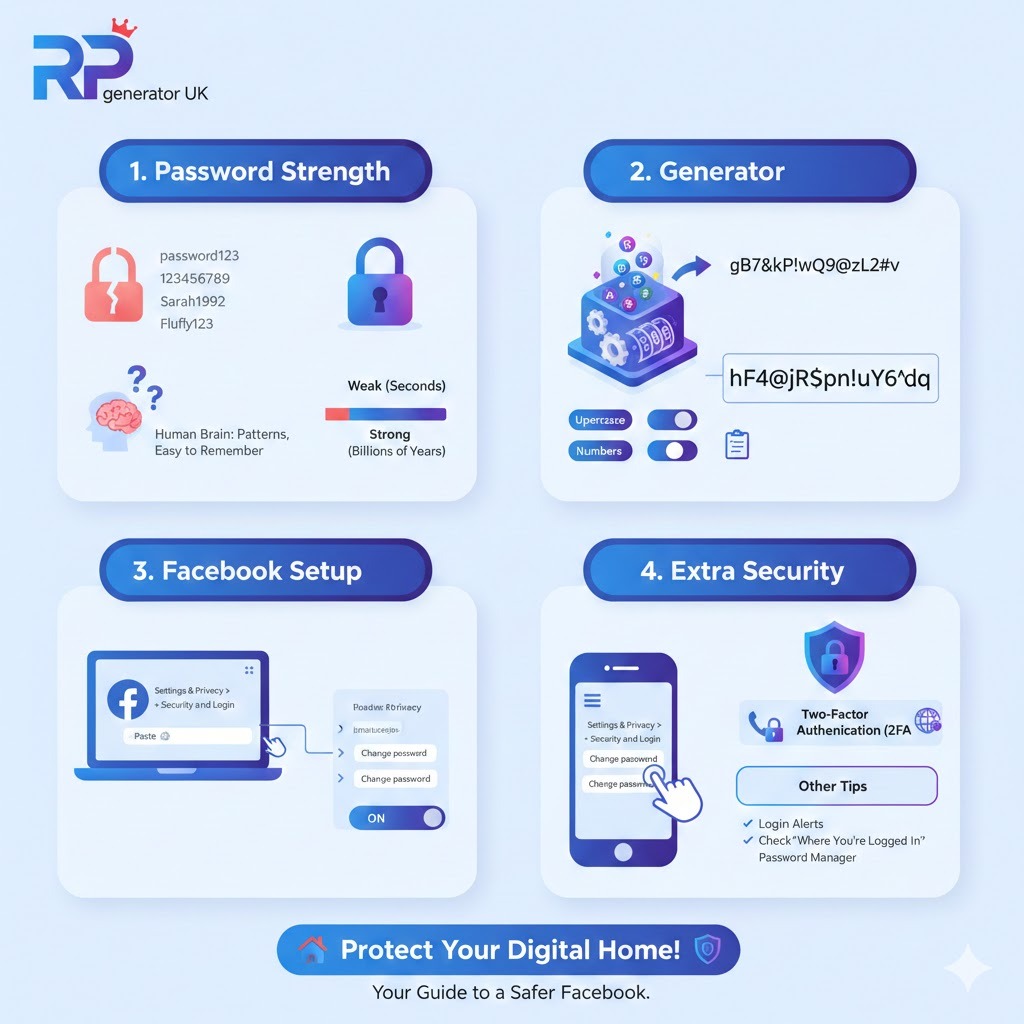
Imagine your Facebook account is your house. Inside, you have all your photos, your conversations with friends, and memories you’ve shared over the years. You wouldn’t use a flimsy, cheap lock on your front door, right? You’d want a strong, solid lock that keeps out anyone who shouldn’t be inside.
Your Facebook password is that lock?
A few years ago, my friend Sarah’s Facebook account started acting strange. It was posting weird ads for things she would never buy, like “miracle weight loss tea.” Her friends started getting messages from “her” asking for money. Sarah was so embarrassed and worried. She felt like someone had broken into her digital house and was messing up all her stuff.
The problem? Her password was “Sarah1992.” It was her name, and the year she was born. It was easy for her to remember, but it was also super easy for a bad guy to guess.
This story is way too common. But the good news is, it’s easy to fix. In this guide, I’m going to show you, step-by-step, how to build the strongest, most secure lock for your Facebook house. We’re going to use a special tool called a random password generator. Don’t worry, it sounds fancy, but it’s actually very simple to use. By the end of this, you’ll be a pro at keeping your Facebook account safe and sound.
Part 1: Why Your Old Password Might Be Letting You Down
Before we build a new, super-strong lock, let’s talk about why the old one might not be good enough.
What Makes a Password “Weak”?

A weak password is like that flimsy lock I talked about. It’s something a bad person can easily pick or break. Here are some of the most common weak passwords that people use:
- password123
- 123456789
- qwerty (the first six letters on a keyboard)
- Your pet’s name, like Fluffy123
- Your birthday, like John04221988 (John, April 22, 1988)
- The word “password” with a symbol, like P@ssword
If you’re using one of these, or something similar, you’re not alone. But we need to change that. These passwords are like leaving a key under your doormat. Hackers have special computer programs that can try these common passwords in just a few seconds.
The Mistakes Our Brains Make When Making Passwords
Our brains are amazing, but they love patterns and things that are easy to remember. This is great for many things, but not for making passwords.
When we try to make a “strong” password, we often do things that are actually very predictable to a computer:
- We replace letters with symbols. For example, using @ instead of ‘a, or $ instead of ‘s’. So, “password” becomes P@$$w0rd. Hackers’ computers know this trick!
- We use keyboard patternslike typing 1qaz2wsx because those keys are right next to each other on the keyboard.
- We use personal info. Your kid’s name, your favorite sports team, your anniversary. A hacker can look at your public Facebook profile to find this information and guess your password.
A computer doesn’t get tired. It can try millions of guesses in a minute. So, if your password has a pattern, a computer will find it.
The Golden Rule of Passwords
The most important rule is this: A good password is not a word. It’s a long, random string of characters.
Think of it like this. If a lock has only 3 pins, it’s easy to pick. If it has 20 pins, it’s almost impossible. A longer password with mixed-up characters is like a lock with 20 pins. It’s just too hard for a computer to guess.
This is where our secret weapon comes in: the random password generator.
Part 2: Meet Your New Best Friend: The Random Password Generator
So, what is this magical tool?
A random password generator is a simple program that creates passwords for you. But it doesn’t create words or patterns. It creates a completely random mix of letters, numbers, and symbols.
Think of it like a lottery machine. The machine has a bunch of balls with numbers on it. It mixes them all up and spits out a few random ones. A password generator does the same thing, but with letters, numbers, and symbols.
For example, a generator might create something like this:
gB7&kP!wQ9@zL2#v
Look at that. Is it a word? No. Does it have your birthday in it? No. Is it easy to remember? No! And that’s the point! It’s not supposed to be easy for you to remember. It’s supposed to be impossible for a hacker to guess.
Why a Random Password is So Much Better?
A password like gB7&kP!wQ9@zL2#v is strong for a few reasons:
- It’s long. It has 16 characters. Every character you add makes it hundreds of times harder to crack.
- It has a mix of everything. It has big letters (B, K, P, Q, L, V), small letters (g, w, z), numbers (7, 9, 2), and symbols (&, !, @, #). This mix-up makes it very complex.
- It has no pattern. There’s no word, no name, no keyboard sequence. It’s pure randomness.
A computer trying to guess this password would take billions of years. It’s just not going to happen.
Part 3: Your Step-by-Step Guide to a Safer Facebook
Okay, now for the fun part. Let’s get you set up with a new, super-secure password. We will do this in four simple steps.
Step 1: Find a Good Password Generator
You can’t just use any password maker you find online. You want one that is safe and trustworthy. Here are the best places to find one:
- Inside Your Web Browser: Modern web browsers like Google Chrome, Firefox, and Microsoft Edge have a password generator built right in. When you sign up for a new website or change a password, they will often offer to create a strong one for you. This is a very safe and easy option.
- Inside a Password Manager: A password manager is a special app that keeps all your passwords safe. We’ll talk more about these later, but they all have excellent password generators built-in.
- A Good Online Generator: If you just want to quickly generate one password, you can use a reputable website. A great, simple one is the LastPass Password Generator. It’s free and very easy to use.
How to know if a website is safe? Look for the little padlock icon next to the website address in your browser. That means the connection is secure.
Step 2: Build Your Super Strong Password
Once you have your generator open, you’ll see some options. Let’s go through them. We’ll use the LastPass one as an example, but they are all very similar.
- Password Length: This is the most important setting! You will see a slider. Slide it all the way to 16 characters, or even 20 if you can. Longer is always better.
- Uppercase Letters (ABC): Make sure this is turned ON. This adds big letters like A, B, and C.
- Lowercase Letters (abc): Make sure this is turned ON. This adds small letters like a, b, c.
- Numbers (123): Make sure this is turned ON. This adds numbers like 1, 2, 3.
- Symbols (!@#$): Make sure this is turned ON. This adds special characters like !, @, #, $.
Once you have all those settings on, just click the button that says “Generate Password” or “Refresh”.
You will see a crazy-looking password appear, just like the one we saw before: gB7&kP!wQ9@zL2#v.
Right next to it, there will be a button that says “Copy”. Go ahead and click that button. This copies the password to your computer’s invisible clipboard, so you can paste it in a moment.
IMPORTANT: Do not try to type this password yourself. It’s too long, and you’ll make a mistake. Always use the Copy button.
Step 3: Put Your New Password on Facebook
Now that you have your super-secret password copied, let’s put it into Facebook. We’ll cover how to do this on a computer and on a phone.
On a Computer (Desktop or Laptop):
- Open your web browser (like Chrome or Firefox) and go to www.facebook.com.
- Log in to your account with your current, old password.
- Look in the top-right corner of the page. You will see a little arrow pointing down. Click on it.
- A menu will appear. Click on “Settings & Privacy”.
- Another menu will pop out. Click on “Settings”.
- You are now on the Settings page. Look at the menu on the left side. Click on “Security and Login”.
- Now, look at the main part of the page. Find the section that says “Change password” and click the “Edit” button next to it.
- Now you will see three boxes:
- Current password: Type your old password in here.
- New password: Right-click in this box and choose “Paste”. Your new, long, random password will appear here.
- Re-enter new password: Right-click in this box and choose “Paste” again.
- Click the “Save Changes” button.
That’s it! You’ve just changed your Facebook password to one of the strongest passwords possible. Give yourself a pat on the back!
On a Phone (iPhone or Android):
- Open the Facebook app on your phone.
- Tap the menu icon. It looks like three horizontal lines. On an iPhone, it’s in the bottom-right corner. On an Android, it’s in the top-right corner.
- Scroll down and tap on “Settings & Privacy”.
- Then tap on “Settings”.
- Scroll down again until you see the “Security” section. Tap on “Security and Login”.
- Under the “Login” section, tap on “Change password”.
- You will see three boxes, just like on the computer:
- Current password: Type your old password.
- New password: Tap and hold in this box until a menu appears, then tap “Paste”.
- Confirm new password: Tap and hold in this box and tap “Paste” again.
- Tap the “Save Changes” button.
Perfect! Your Facebook account is now much more secure on your phone, too.
Step 4: Save Your New Password Somewhere Safe
Okay, you have a new password. But it’s impossible to remember. So what happens next time you want to log in?
This is the most important step. You need to save this new password somewhere safe. Do not just write it on a sticky note and put it on your computer monitor!
Here are your best options, from best to good:
Option 1 (The Best): Use a Password Manager
This is the safest and easiest way. A password manager is like a digital safe for all your passwords.
- You only have to remember one password, called the “master password.” This password unlocks your safe.
- The password manager saves your new, long Facebook password for you.
- The next time you go to Facebook, the password manager can automatically fill in the login for you.
It’s like having a super-secure assistant who remembers all your secrets for you. Some good password managers are:
- Bitwarden (has a great free version)
- 1Password
- LastPass
When you changed your Facebook password, your browser might have asked if you wanted to save it. This is a basic form of a password manager. It’s better than nothing, but a dedicated password manager app is much more secure.
Option 2 (Good): Use Your Browser’s Saved Passwords
If you don’t want to get a password manager right now, you can let your web browser (Chrome, Firefox, Safari) save the password for you. When you clicked “Save Changes,” Facebook probably asked, “Would you like to save this password in your browser?” If you said yes, you’re all set. Your browser will fill it in for you next time.
Option 3 (Okay, But Be Careful): Write It Down
If you’re not comfortable with digital storage, you can write the password down on a piece of paper. But you must keep this paper in a very safe place, like a locked drawer or a safe at home. Do not carry it in your wallet or leave it out on your desk.
Part 4: Adding Extra Locks to Your Facebook House
A strong password is like having a great deadbolt on your door. But what if we added a security system, too? That’s what Two-Factor Authentication (or 2FA) is.
What is Two-Factor Authentication (2FA)?
Two-Factor Authentication means you need two things to log into your account.
- Something you know (your password).
- Something you have (your phone).
It works like this: After you enter your password, Facebook will send a special code to your phone. You have to type that code in to get in. So even if a hacker steals your password, they can’t get in because they don’t have your phone.
It’s like needing both a key and a secret handshake to enter a clubhouse.
How to Turn On 2FA for Facebook?
This is one of the best things you can do to protect your account. Here’s how to set it up:
- Go to your Facebook Settings (just like we did to change the password).
- Go to “Security and Login”.
- Look for the section called “Two-factor authentication” and click “Edit” or “Use two-factor authentication”.
- Facebook will guide you through the setup. The easiest method is to use “Text message (SMS)”. You will enter your phone number, and Facebook will send you a 6-digit code to confirm it’s your number.
- Once you confirm, 2FA will be turned on!
The next time you log in from a new computer or phone, Facebook will ask for your password and then a code from your phone.
Other Facebook Safety Tips
While you’re in the Security and Login settings, here are a couple more things to do:
- Turn on “Get alerts about unrecognized logins”. This will send you an email or a Facebook notification if someone tries to log into your account from a new device or place. It’s like a security alarm for your Facebook house.
- Check “Where you’re logged in”. This section shows you every device that is currently logged into your Facebook account. If you see something you don’t recognize, like a login from another country, click the three dots next to it and select “Not you?” or “Log out”. Then change your password immediately.
Part 5: What to Do If You Get Locked Out
Sometimes things go wrong. Maybe you forgot your master password for your password manager, or you can’t find the password you wrote down. Don’t panic!
“Help! I Forgot My New Facebook Password!”
This happens to everyone. Here’s what to do:
- Go to the Facebook login page at www.facebook.com.
- Below the password box, click the link that says “Forgotten password?”.
- Facebook will ask you to enter your email, phone number, or full name.
- It will then send you a code to reset your password. You can get this code via email or text message.
- Once you enter the code, you can create a brand new password. You can use your random password generator again to make a new one!
“Help! I Can’t Paste My New Password!”
Sometimes, for security reasons, websites won’t let you paste a password. If you run into this:
- Try typing it carefully. Look at each character one by one.
- Use a password manager. Password managers can usually fill in the password for you, which gets around this problem.
- Try a different browser. Sometimes it works in Chrome but not in Firefox, or vice versa.
Conclusion:
We’ve covered a lot of ground, but you’ve done something really important today. You’ve taken a huge step in protecting your digital life.
Let’s quickly recap what we learned:
- A simple password is like a weak lock and is easy for bad guys to break.
- A random password generator creates a super-strong, long, and random password that is almost impossible to guess.
- We learned how to generate a secure password and change it on Facebook, on both a computer and a phone.
- We talked about the importance of saving your new password safely, with a password manager being the best choice.
- We added an extra layer of security by turning on Two-Factor Authentication (2FA).
Your Facebook account is now locked up tight with a deadbolt and a security system. You can feel more confident sharing your life with friends and family, knowing that you’ve taken the right steps to keep the bad guys out.
So, don’t wait. Take 15 minutes today to follow these steps. It’s one of the best investments you can make for your peace of mind online. You’ve got this