Introduction:

Imagine your front door key. You wouldn’t make it simple, like a paperclip that anyone could bend to fit your lock, right? You wouldn’t leave it under the doormat with a sign pointing to it. Of course not! You keep your key safe because it protects your home and everything inside it.
Now, think about your online life. Your password is the key to your digital home. It protects your bank account, your private messages, your photos, and so much more. But how safe is that digital key? Is it strong and unique, or is it like a simple paperclip that anyone could figure out?
This guide will talk about password safety in the simplest way possible. We will learn what makes a password strong, how bad guys try to steal it, and what you can do to build a better lock for your digital life. No big, fancy words—just easy talk about how to stay safe online.
Password Security in a Nutshell
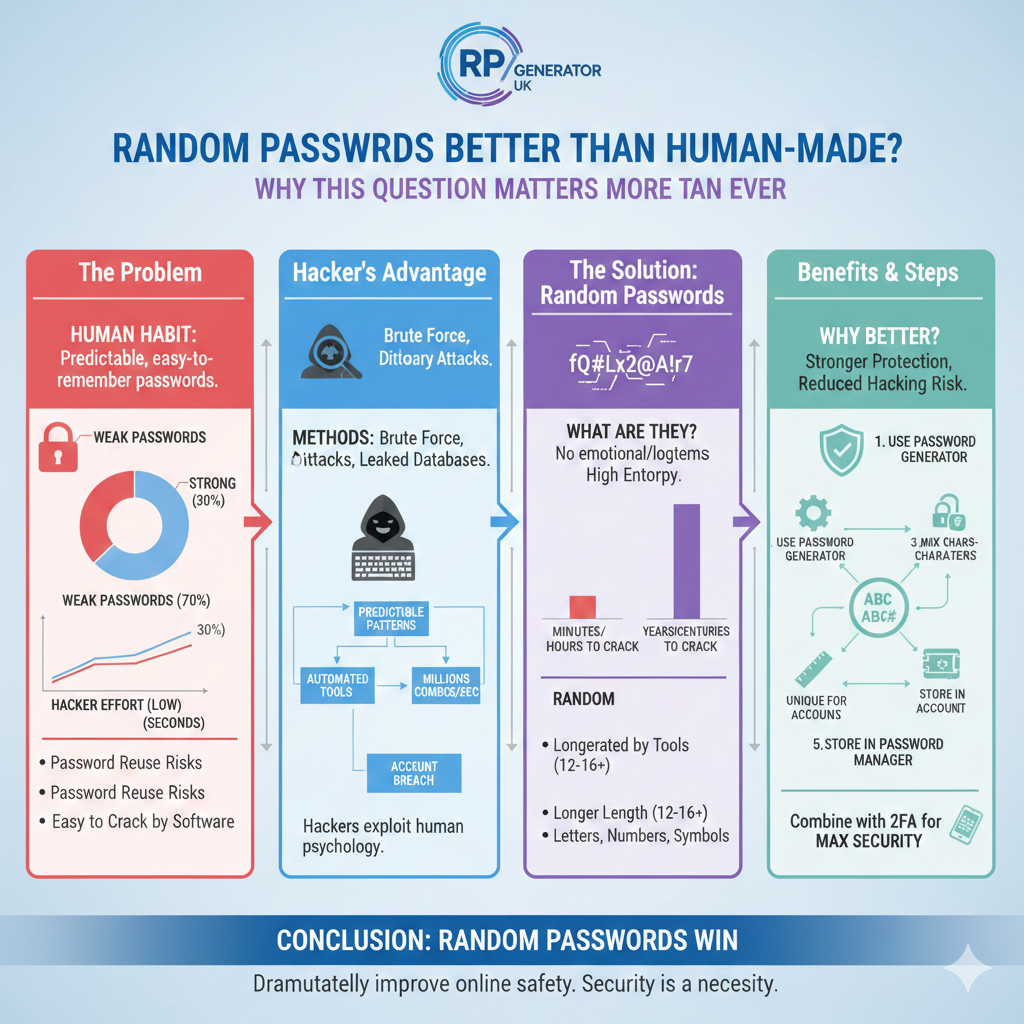
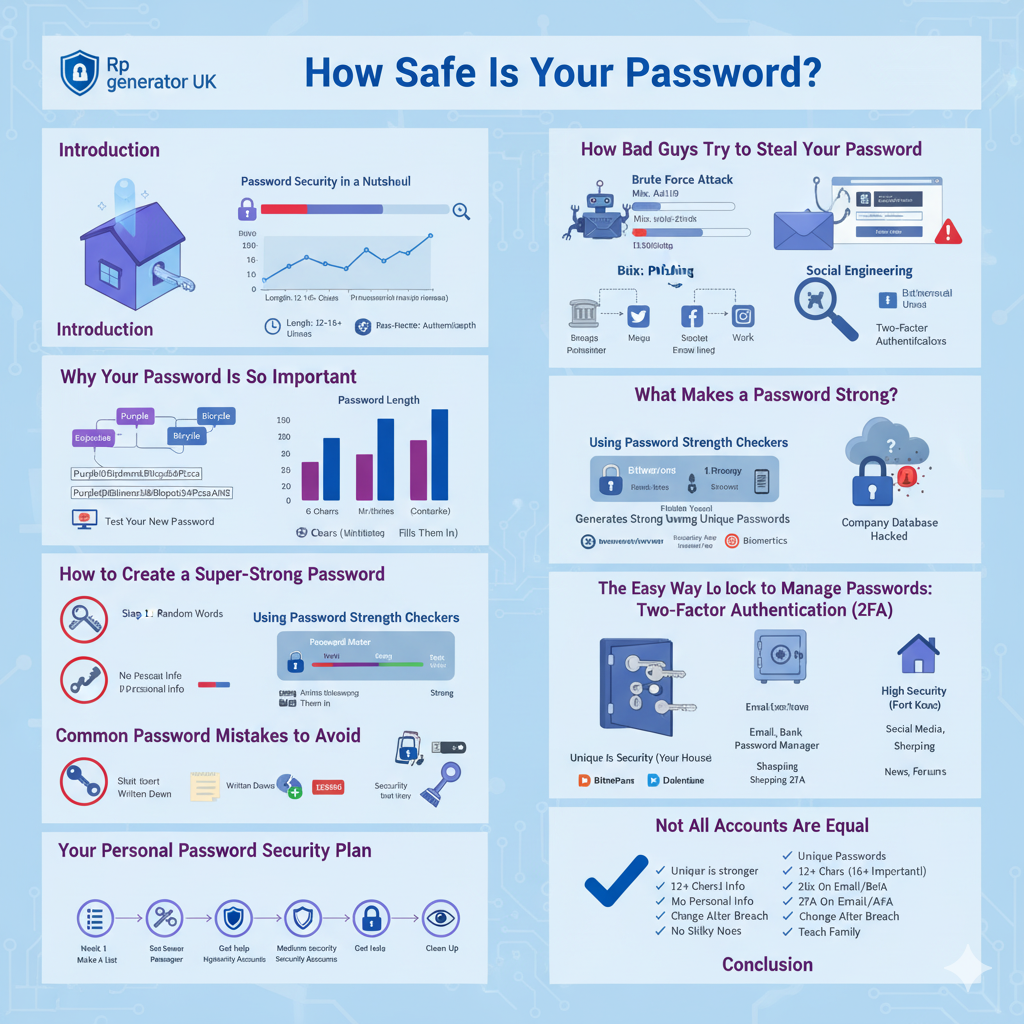
Password security is the most important part of staying safe online. But many people still use weak or old passwords that are easy for hackers to guess. When you search for “how secure is my password,” you find many tools that help you check how strong your password is. These tools, like password strength checkers and password meters, test your password to see if it’s long, complex, and random. They can even tell you how long it would take a computer to crack it.
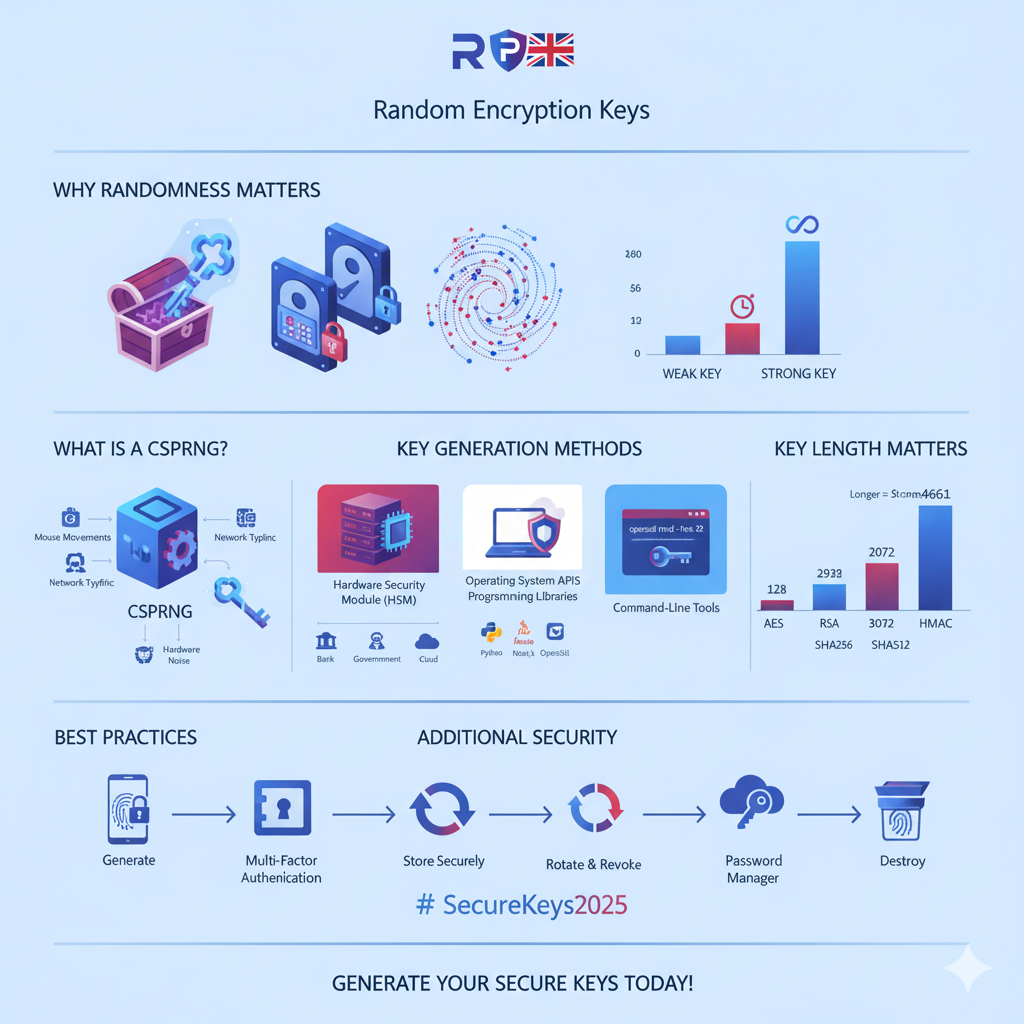
Good security websites all agree on a few key things. A strong password should be long—at least 12 to 16 characters. It should mix big letters, small letters, numbers, and symbols. The longer the password, the much, much harder it is to hack. A password that can be cracked in seconds could take hundreds of years if you just add a few more characters.
Experts also warn against using the same password everywhere. Even a strong password is not safe if it’s stolen from a website that got hacked. This is why using a password manager is so important. A password manager is like a safe for all your passwords. It creates and remembers super-strong, unique passwords for every account you have.
Another great tip is to use passphrases. A passphrase is a string of four or five random words, like “CorrectHorseBatteryStaple.” This is easier for people to remember than a short, jumbled mess of characters, but it’s much harder for computers to guess.
The main message is simple: password safety is a must-do. Weak passwords are a top reason why people get hacked. Using a password strength checker, making unique passwords, and adding a second layer of security (called two-factor authentication) are the best ways to protect yourself. Longer, random passwords or passphrases give you the best protection. These tools and tips help you understand the risks and build a strong defense for your online identity.
Why Is Your Password So Important?

Let me tell you a story about my friend, Mark. Mark used the same password for everything: “MarkLakers88.” It was his name, his favorite basketball team, and his birth year. He thought it was clever and easy to remember.
One day, Mark got an email that looked like it was from his favorite online store. It said his account had a problem and he needed to click a link to fix it. He clicked the link, typed in “MarkLakers88,” and thought nothing of it.
The next morning, he couldn’t log into his email. His Facebook profile picture had been changed to something silly. His sister called to ask why he was sending her strange messages asking for money. Worst of all, he checked his bank account and saw that $2,000 was missing.
What happened? The fake email was a trick. The bad guys stole his password. Since he used the same password everywhere, they now had the key to his whole digital life. They got into his email, used it to reset his other passwords, and caused a lot of damage and stress.
Mark’s story happens every day to thousands of people. Your password protects more than you think. Think about all the places you use a password:
- Your email (which is the key to all your other accounts)
- Your bank and credit card accounts
- Your social media like Facebook and Instagram
- Shopping sites like Amazon that have your credit card info
- Your work accounts
- Video streaming services like Netflix
- Government sites for taxes or benefits
Each one is a door to your personal information. If a bad guy gets the key to just one door, they can often find a way to open the others. This is why having a strong, unique password for each account is so important.
How Bad Guys Try to Steal Your Password
To protect yourself, it helps to know how the bad guys work. They aren’t always super-smart computer geniuses from movies. Often, they use simple tricks and tools that anyone can find online.
1. The “Try Everything” Attack (Brute Force Attack)
This is like a thief trying every single key on a giant keyring until one opens the door. Hackers use computer programs that can guess thousands of passwords every second.
They start with the most common passwords:
- 123456
- password
- qwerty
- 111111
Then they try combinations of words, numbers, and symbols. A simple password with only six letters can be cracked in just a few minutes. But here’s the amazing part: every single character you add to your password makes it much, much stronger. A password that takes minutes to crack could take hundreds of years if you make it longer and more complex. This is why a password strength checker always tells you to add more characters.
2. The “Dictionary” Attack
This is a smarter version of the “try everything” attack. Instead of random letters, the program uses a dictionary of common words, names, and phrases. It will try variations like:
- Password2023
- Iloveyou
- Letmein
- Monkey123
It will also try common substitutions, like replacing an “o” with a zero (e.g., “Passw0rd”). This is why using real words, even with small changes, can be weak. A good password security test will often flag passwords that contain common dictionary words.
3. The “Trick You” Attack (Phishing)
This is one of the most common ways passwords get stolen. You get an email or a text message that looks very real. It might seem to be from your bank, your email provider, or a company you know.
The message usually says there’s an “urgent problem” with your account. It asks you to click a link to fix it. When you click the link, it takes you to a fake website that looks exactly like the real one. You type in your username and password, and… boom! The bad guys have it.
They might even send you to a page that says “Error, please try again,” and then redirect you to the real website so you don’t suspect a thing. Always be careful of links in emails. If you’re not sure, go directly to the company’s website yourself instead of clicking the link.
4. The “Detective” Attack (Social Engineering)
This is when hackers play detective to learn about you. They look at your social media profiles—your Facebook, Instagram, Twitter, LinkedIn. They are looking for clues:
- Your pet’s name
- Your kids’ names
- Your birthday
- Your anniversary
- Your favorite sports team
- The name of your first school
People often use this information in their passwords because it’s easy to remember. But for a hacker, it’s a goldmine of clues. This is why you should never use personal information in your passwords. A password vulnerability check will often warn you about this.
5. The “Break-In” Attack (Data Breach)
Sometimes, it’s not your fault. A company or website you use gets hacked. The hackers break into the company’s computers and steal thousands or even millions of user passwords and email addresses.
Even if you have a strong password, if the company didn’t store it safely, the hackers might get it. This is why using the same password on multiple websites is so dangerous. If your password for a shopping website is stolen in a breach, and you use the same password for your email, the hacker now has access to your email, too.
You can check if your email has been in a known breach using a site like Have I Been Pwned. It’s a free password breach detection service.
What Makes a Password Strong?
Now that we know how passwords get stolen, let’s talk about how to build a strong one. A strong password is like a complex, unique key that would be very hard for a thief to copy.
1. Length Is Your Best Friend
The single most important thing for a strong password is its length. Every character you add makes your password exponentially harder to crack.
Think about it like this:
- A 6-character password can be cracked in minutes.
- An 8-character password might take hours.
- A 12-character password could take years.
- A 16-character password might take centuries.
A good password strength meter will show you this. As you type more characters, you’ll see the estimated time to crack your password go from seconds to years. This is why experts always say to focus on password length first.
2. Mix It Up
A strong password uses different types of characters. Don’t just use lowercase letters. Mix in:
- Uppercase letters (A, B, C)
- Lowercase letters (a, b, c)
- Numbers (1, 2, 3)
- Symbols (!, @, #, $, %, &)
For example, “happysummer” is a very weak password. But “H@ppy$umm3r!” is much, much stronger. A password complexity test checks for this mix.
3. Be Random and Unpredictable
Strong passwords avoid patterns and personal information. Don’t use:
- Your name, your family’s names, or your pet’s name
- Your birthday, anniversary, or any important dates
- Common words like “password,” “admin,” or “welcome”
- Keyboard patterns like “qwerty,” “123456,” or “asdfgh”
- Repeated characters like “aaaaaa” or “111111”
A weak password detector tool will flag these kinds of patterns immediately. The goal is to create a password that has no meaning and no connection to you whatsoever.
How to Create a Super-Strong Password (Step-by-Step)
Making a strong password that you can actually remember seems hard, but there’s a method that experts love. It’s called the “passphrase technique.” It creates passwords that are both incredibly strong and easier for your brain to remember.
Step 1: Think of Four Random Words
Start by thinking of four completely random words. The key is that they should have NO connection to each other. Don’t pick “BigRedCar” because those words are related. Pick something like:
- Purple
- Elephant
- Bicycle
- Pizza
Step 2: Put Them Together
Just smash them together.
- PurpleElephantBicyclePizza
This is already a pretty good password! It’s long (25 characters) and not a common phrase. A password hack time calculator would probably show this would take a very long time to crack.
Step 3: Add Some Numbers and Symbols
To make it even stronger, let’s add some numbers and symbols. You can put them between the words.
- Purple7@Elephant3&Bicycle9#Pizza
Now this is a truly powerful password. It’s long, it’s complex, and it’s not based on any personal information. A secure password rating tool would give this a very high score.
Step 4: Make It Unique for Each Website
You should never use the same password twice. But how can you remember a different password like that for every site? Easy! Just add a small tag for the website.
For your Amazon account, you could add “AMZ” at the end:
- Purple7@Elephant3&Bicycle9#PizzaAMZ
For your Facebook account, you could add “FB”:
- Purple7@Elephant3&Bicycle9#PizzaFB
This way, you have a unique, powerful password for every site, but you only need to remember the core “PurpleElephantBicyclePizza” part.
Step 5: Test Your New Password
Once you’ve created your new password, you can use an online password checker to see how strong it is. Good tools will tell you how long it would take for a computer to crack it.
Using Password Strength Checkers
A password strength checker (also called a password meter or password analyzer) is a tool that tells you how strong your password is. It’s like having a security expert look at your digital key.
How Do They Work?
These tools look at several things:
- Length: How many characters does it have?
- Character Variety: Does it use a mix of letters, numbers, and symbols?
- Patterns: Does it contain common words, keyboard patterns, or repeated characters?
- Breached Databases: Has this password been seen in any known data breaches?
How to Use Them Safely
You might be nervous about typing your real password into a website. That’s a smart concern! Reputable password security tools online are designed to be safe. They analyze your password right in your web browser and don’t send it to their servers. They never store the password you type in.
Where to Find Good Checkers
Look for checkers from well-known security companies. Here are some popular and safe options:
- Security.org’s Password Strength Checker
- NordPass Password Strength Checker
- Bitwarden Password Strength Checker
What the Results Mean
When you type in your password, the tool will give you feedback. It might show you:
- A color code (red for weak, yellow for okay, green for strong)
- An estimated password cracking time (e.g., “It would take a computer 5 minutes to crack this” or “It would take a computer 3 million years to crack this”)
- Tips on how to make it stronger (e.g., “Add more characters” or “Avoid common words”)
This feedback is very helpful for understanding your password security score.
The Easy Way to Manage Passwords: Use a Password Manager
Remembering a different, super-strong password like “Purple7@Elephant3&Bicycle9#PizzaAMZ” for every single account is impossible for any human. This is where a password manager comes in. It is the single best thing you can do for your online security.
What Is a Password Manager?
Think of a password manager as a secure digital safe for all your passwords. You only have to remember ONE password, called the “master password.” The password manager takes care of creating, remembering, and filling in all the others for you.
How Does It Work?
- Create One Master Password: You create one very, very strong master password. This is the only password you ever have to remember.
- It Generates Strong Passwords: For every new account you make, the password manager can generate a crazy-strong, random password for you (like xT8#mP!4@gZ$vN2&kQ9*w).
- It Saves Them: It saves all these unique passwords in an encrypted “vault.” Encryption means they are scrambled up so that even if someone stole the data, they couldn’t read it.
- It Fills Them In: When you visit a website, the password manager can automatically fill in your username and password for you.
Why Is This So Much Safer?
- You get unique passwords for every site. If one site gets hacked, only that one password is at risk.
- Your passwords are incredibly strong. No human could create or remember passwords like the ones a computer can generate.
- It’s convenient. You don’t have to worry about forgetting passwords anymore.
Choosing a Password Manager
There are many good password managers. Look for ones that are well-known and trusted. Some popular choices are:
Using a password manager is one of the top password best practices recommended by all security experts.
Adding an Extra Lock: Two-Factor Authentication (2FA)
Even with a super-strong password, it’s a good idea to add another layer of security. This is called Two-Factor Authentication, or 2FA. Think of it like adding a second lock to your front door. Even if a thief steals your key (your password), they still can’t get in without unlocking the second lock.
How Does 2FA Work?
With 2FA, you need two things to log into your account:
- Something you KNOW: Your password.
- Something you HAVE: Your phone, a special USB key, or even your fingerprint.
Common Types of 2FA
- Text Message Codes: The website sends a 6-digit code to your phone via text message. You type this code in after you enter your password. This is better than nothing, but it’s not the most secure method.
- Authenticator Apps: This is the most recommended method. You use an app on your phone like Google Authenticator or Authy. The app generates a new code every 30 seconds.
- Security Keys: This is the most secure method. You buy a small physical device, like a YubiKey. You plug it into your computer or tap it on your phone when you log in. A hacker can’t steal this over the internet.
- Biometrics: Using your fingerprint or face to log in, like you do on your smartphone.
You should enable 2FA on every important account, especially your email, bank, and password manager. Most websites and apps call it “Two-Factor Authentication,” “Two-Step Verification,” or something similar in their security settings.
Common Password Mistakes to Avoid
Even with good intentions, many people make mistakes that leave their accounts open to attack. Here are the most common ones:
1. Using the Same Password Everywhere
This is the biggest and most dangerous mistake. It’s like using the same key for your house, your car, your office, and your safety deposit box. If a thief gets that one key, they have access to your entire life.
2. Using Personal Information
Your pet’s name, your kid’s birthday, your anniversary… these things are easy for you to remember, but they are also easy for a hacker to find. A quick look at your social media can give them all the clues they need for a password weakness test.
3. Creating Short Passwords
Short passwords are easy to type, but they are also easy to crack. Always aim for at least 12 characters, and 16 or more is even better. A password length strength analysis shows this is the most critical factor.
4. Writing Passwords on Sticky Notes
Keeping your passwords on a sticky note on your computer monitor or in a notebook by your desk is like leaving your house key under the doormat. Anyone who walks by can see it.
5. Not Changing Passwords After a Breach
If you get an email from a company saying their data was breached, you need to change your password on that site immediately. Even if you use a unique password there, you should change it just in case.
6. Using Terrible, Common Passwords
Believe it or not, “password” and “123456” are still two of the most common passwords in the world every year. Any password exposure risk tool will instantly identify these as terrible choices.
Not All Accounts Are Equal:
You don’t need to protect your account for a random news website as much as you protect your bank account. You can think of your accounts in three levels.
Level 1: High Security (Fort Knox)
These accounts need maximum protection. If a hacker gets into one of these, the damage could be huge.
- Email: Your email is the master key to all your other accounts because it’s used for password resets.
- Bank and Investment Accounts
- Password Manager
- Government Accounts (like taxes or social security)
For these accounts:
- Use a unique, very long password (16+ characters).
- Use a secure password generator from your password manager.
- Definitely use two-factor authentication (a security key is best for these).
Level 2: Medium Security (Your House)
These accounts are important and contain personal information, but the damage from a hack is less severe.
- Social Media (Facebook, Instagram, Twitter)
- Shopping Sites (Amazon, eBay)
- Streaming Services (Netflix, Spotify)
For these accounts:
- Use a unique, strong password (at least 12 characters).
- Enable two-factor authentication if it’s offered.
Level 3: Low Security (The Junk Drawer)
These accounts don’t hold sensitive information. You probably wouldn’t care too much if someone got into them.
- News websites
- Forums or message boards
- Accounts you use once and forget about
For these accounts:
- Use a unique password (at least 8 characters).
- It’s less critical, but you should still use a different one for each.
Your Personal Password Security Plan (Week by Week)
All this information can feel overwhelming. But you can make big improvements in just a few weeks. Here is a simple plan.
Week 1: Make a List
- Write down all the online accounts you can think of.
- Mark which ones are High, Medium, and Low security.
- Next to each one, write down if you use the same password as another account. Be honest!
Week 2: Get Your Password Manager
- Choose a password manager from the list above.
- Install it on your computer and your phone.
- Create your master password. Make it a long passphrase you’ll remember, like the one we created earlier.
- Set up two-factor authentication for your password manager account itself.
Week 3: Lock Down Your High-Security Accounts
- Start with your email account. Log in and use your password manager to change the password to a new, super-strong one it generates.
- Do the same for your bank accounts.
- Do the same for your password manager account.
- Enable two-factor authentication on all of them.
Week 4: Fix Your Medium-Security Accounts
- Go through your list of social media, shopping, and streaming accounts.
- For each one, log in and let your password manager change the password to a new, strong one.
- Enable two-factor authentication wherever it’s available.
Week 5: Clean Up
- Go through your Low-Security accounts. Either delete them if you don’t use them or update their passwords.
- Look for any old accounts you forgot about and delete them.
- Set a reminder on your calendar to do a quick security check every six months.
Password Security Checklist
Use this list to check your progress. The more boxes you can check, the safer you are.
- All my important accounts have different, unique passwords.
- All my passwords are at least 12 characters long (16 for important ones).
- My passwords mix uppercase letters, lowercase letters, numbers, and symbols.
- None of my passwords use my name, birthday, or other personal info.
- I use a password manager to create and store my passwords.
- I have two-factor authentication turned on for my email and bank accounts.
- I have two-factor authentication on my password manager.
- I change my password right away if I hear about a data breach.
- I never write my passwords down where others can see them.
- I have taught my family about password safety.
Conclusion:
We’ve covered a lot, but it all comes down to a few simple ideas. Your password is the key to your digital life. By making that key longer, more complex, and unique for every lock, you make yourself incredibly safe online.
Remember these five simple rules:
- Longer is stronger: Add more characters to your passwords.
- Be unique: Never reuse the same password on different websites.
- Get help: Use a password manager to do the hard work for you.
- Add a second lock: Turn on two-factor authentication (2FA).
- Stay alert: Be careful of strange emails and links.
Your online security doesn’t have to be complicated or scary. By taking a few small steps, you can build a strong wall around your digital life. Start today with your most important account, and work your way down the list. Your future self will thank you for the peace of mind you build today. Stay safe out there